> ## Documentation Index
> Fetch the complete documentation index at: https://dialnexa.com/docs/llms.txt
> Use this file to discover all available pages before exploring further.
# DialNexa Speech Settings
> Tune DialNexa speech settings for Response Eagerness, Boosted Keywords, Audio Cache, Denoising Mode, Hinglish Map, transcriber behavior, and voice latency.
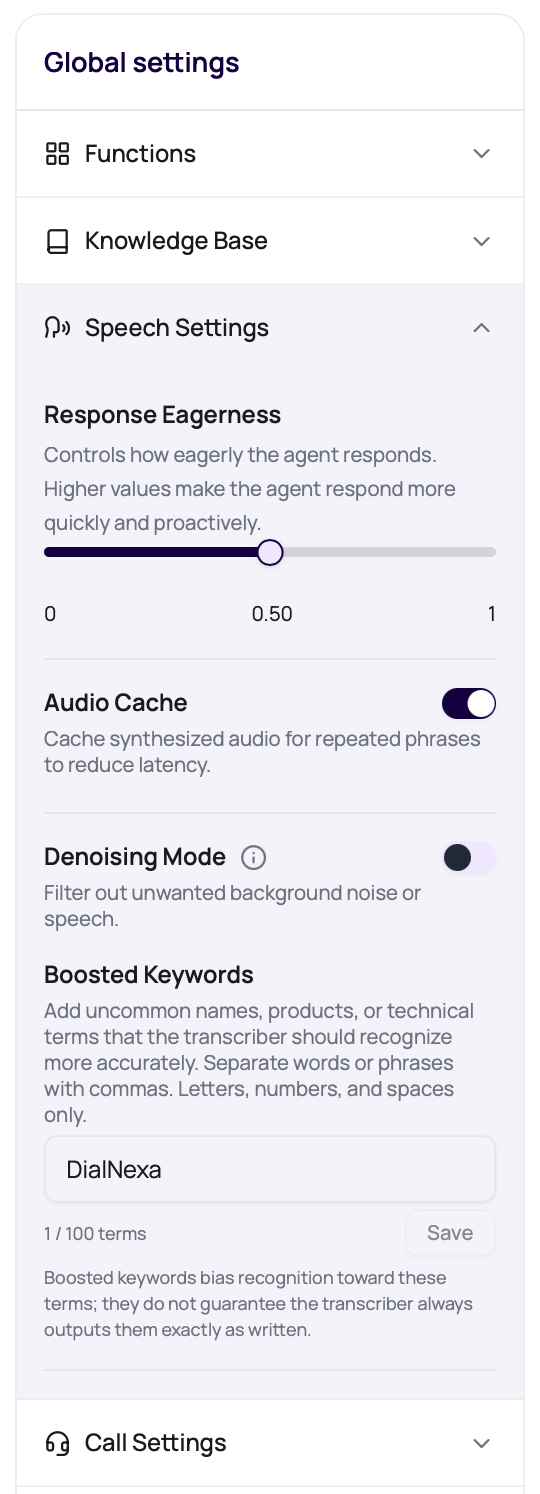
DialNexa Speech Settings control how an agent listens and speaks during a live call. The visible controls are intentionally focused: Response Eagerness for supported Soniox paths, Interruption Sensitivity for barge-in behavior, Boosted Keywords for recognition hints on supported transcribers, Audio Cache for repeated speech, Denoising Mode and Noise Suppression Strength for noisy audio, and Hinglish Map for Hindi-English wording.
 Speech settings are where milliseconds, noise, and phrasing argue quietly. Let them argue in test calls, not during your biggest campaign.
## DialNexa Speech Settings Controls
| Control | When it appears | What it changes |
| -------------------------- | -------------------------------------------- | ----------------------------------------------------------------------------------------------------------------------------------------------------------------------- |
| Response Eagerness | When the selected transcriber is Soniox. | How patient or eager the agent is before replying to caller speech. |
| Interruption Sensitivity | Speech Settings for the agent version. | How sensitively human speech can interrupt the agent while it is speaking. |
| Boosted Keywords | Cascaded agents using Deepgram or Soniox. | Terms and short phrases the transcriber should listen for more carefully. |
| Audio Cache | Speech Settings for the agent version. | Whether repeated synthesized audio can be reused for faster playback. |
| Denoising Mode | Speech Settings for the agent version. | Whether background noise cleanup is applied. |
| Noise Suppression Strength | When Denoising Mode is on. | How strongly DialNexa asks the denoiser to reduce background sound. The dashboard displays `0`, `25`, `50`, `75`, and `100`, mapped to internal levels `0` through `4`. |
| Hinglish Map | When the selected language is Hindi-English. | Formal Hindi word substitutions used to make Hindi-English calls sound more natural. |
## Response Eagerness
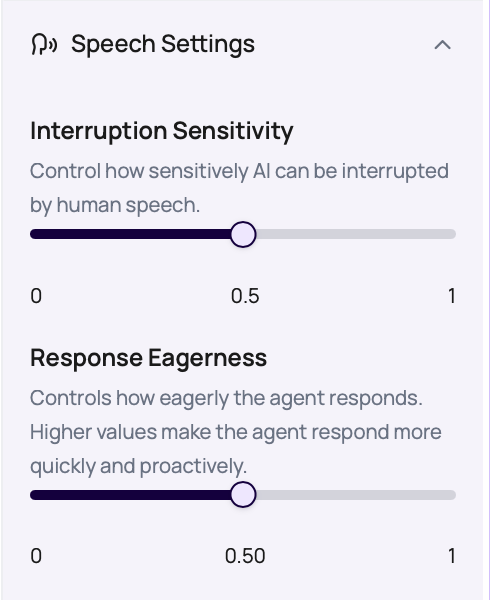
Response Eagerness runs from patient to eager. It is not a quality slider. It is a timing choice.
| Direction | Caller experience | Use when |
| ------------ | ------------------------------------------ | ------------------------------------------------------------------------------------------- |
| More patient | Agent waits longer before responding. | Callers pause, think aloud, speak in longer sentences, or switch between Hindi and English. |
| More eager | Agent replies sooner after shorter pauses. | Callers answer briefly and the script benefits from quick back-and-forth. |
If the agent interrupts callers, do not raise LLM temperature and hope for manners. Check transcript boundaries, greeting length, and Response Eagerness first.
## Interruption Sensitivity
Interruption Sensitivity runs from `0` to `1`. Higher values make the agent more sensitive to caller speech while the agent is speaking. Lower values make interruption detection more conservative.
Speech settings are where milliseconds, noise, and phrasing argue quietly. Let them argue in test calls, not during your biggest campaign.
## DialNexa Speech Settings Controls
| Control | When it appears | What it changes |
| -------------------------- | -------------------------------------------- | ----------------------------------------------------------------------------------------------------------------------------------------------------------------------- |
| Response Eagerness | When the selected transcriber is Soniox. | How patient or eager the agent is before replying to caller speech. |
| Interruption Sensitivity | Speech Settings for the agent version. | How sensitively human speech can interrupt the agent while it is speaking. |
| Boosted Keywords | Cascaded agents using Deepgram or Soniox. | Terms and short phrases the transcriber should listen for more carefully. |
| Audio Cache | Speech Settings for the agent version. | Whether repeated synthesized audio can be reused for faster playback. |
| Denoising Mode | Speech Settings for the agent version. | Whether background noise cleanup is applied. |
| Noise Suppression Strength | When Denoising Mode is on. | How strongly DialNexa asks the denoiser to reduce background sound. The dashboard displays `0`, `25`, `50`, `75`, and `100`, mapped to internal levels `0` through `4`. |
| Hinglish Map | When the selected language is Hindi-English. | Formal Hindi word substitutions used to make Hindi-English calls sound more natural. |
## Response Eagerness
Response Eagerness runs from patient to eager. It is not a quality slider. It is a timing choice.
| Direction | Caller experience | Use when |
| ------------ | ------------------------------------------ | ------------------------------------------------------------------------------------------- |
| More patient | Agent waits longer before responding. | Callers pause, think aloud, speak in longer sentences, or switch between Hindi and English. |
| More eager | Agent replies sooner after shorter pauses. | Callers answer briefly and the script benefits from quick back-and-forth. |
If the agent interrupts callers, do not raise LLM temperature and hope for manners. Check transcript boundaries, greeting length, and Response Eagerness first.
## Interruption Sensitivity
Interruption Sensitivity runs from `0` to `1`. Higher values make the agent more sensitive to caller speech while the agent is speaking. Lower values make interruption detection more conservative.
 | Direction | Caller experience | Use when |
| ------------------ | ------------------------------------------------------------------------------------------ | --------------------------------------------------------------------------------------------- |
| Lower sensitivity | The agent is less likely to stop for brief sounds, background speech, or accidental noise. | Noisy rooms, speakerphone calls, or callers who make short acknowledgements while listening. |
| Higher sensitivity | The agent is more likely to stop when the caller starts talking over it. | Callers often interrupt to correct details, ask a question, or move the conversation forward. |
## Boosted Keywords
Boosted Keywords lets you bias supported transcribers toward uncommon words that matter to the call, such as product names, locality names, medical terms, plan names, abbreviations, or internal brand terms. It appears for cascaded agents when the selected transcriber is Deepgram or Soniox. It is hidden for Speech to Speech agents and for transcribers that do not support recognition-bias vocabulary.
Enter terms as a comma-separated list. DialNexa trims whitespace, removes empty entries, and de-duplicates terms case-insensitively while keeping the first spelling you entered.
| Rule | Limit |
| ------------------ | ---------------------------------------------------------------- |
| Total input length | Up to `2,000` characters. |
| Term count | Up to `100` terms after empty and duplicate entries are removed. |
| One term | Up to `50` characters. |
| Allowed characters | Letters, numbers, and spaces. |
| Multi-word phrases | Allowed, for example `customer success` or `Nexa Prime`. |
Use Boosted Keywords for terms the caller may say, not for whole prompt instructions. The setting can improve recognition, but it does not guarantee the transcript will always output the term exactly as written. Verify it with recordings and transcripts before using it in a large batch.
## Audio Cache
Audio Cache helps repeated text-to-speech output start faster. DialNexa tracks cache lookups, hits, misses, and new cache entries in call evidence when data is available.
| Good candidate | Why it works |
| ------------------------ | -------------------------------------------------- |
| Fixed welcome message. | Same text and same voice configuration repeat. |
| Compliance disclosure. | Usually identical across many calls. |
| Short confirmation line. | Repeats often and is heard immediately by callers. |
| Poor candidate | Why it misses |
| ------------------------------------------------ | ------------------------------------------------------- |
| `Hi {{first_name}}, your payment is {{amount}}.` | Variables change the generated text. |
| Long model-generated replies. | The model can say the same idea with different wording. |
| Fresh external API responses. | Data changes from call to call. |
## Denoising Mode
Denoising Mode can help with background noise, but it should be tested with the actual phone path. When Denoising Mode is on, the Noise Suppression Strength slider lets you choose how strongly DialNexa asks the denoiser to reduce background sound. Lower settings preserve more caller detail. Higher settings can suppress more noise, but aggressive cleanup can also damage speech details.
Current outbound call processing keeps server-side denoising off unless DialNexa enables it for the route. Use recordings and transcripts to confirm whether a specific call path is receiving noise cleanup.
Open Call History, play the recording, and identify noise, echo, clipping, silence, or distance from microphone.
Keep transcriber, voice, prompt, and phone route the same for the next test. If Denoising Mode is already on, adjust Noise Suppression Strength one step at a time.
Use the same caller, route, and script if possible.
Keep denoising only if it improves recognition without making speech sound unnatural.
## Hinglish Map
Hinglish Map appears for Hindi-English setup. Use it when the agent uses formal Hindi words that callers would not use in a real conversation.
| Add a mapping when | Avoid mapping when |
| ------------------------------------------------------------------- | -------------------------------------------------------------------------- |
| Callers consistently use a simpler mixed-language phrase. | The original term is required for legal, medical, or compliance precision. |
| The replacement is shorter and easier to understand over the phone. | The replacement could confuse post-call reporting. |
| You verified the phrase in recordings or real user language. | You are guessing from written Hindi without listening to calls. |
## Troubleshoot By Symptom
Use a more patient Response Eagerness setting where available, shorten the welcome message, and inspect live transcript boundaries.
Check whether the text repeats exactly. Names, amounts, dates, and model rewording create new phrases.
Compare recording and transcript, try Denoising Mode, then compare transcribers through the same route.
Check term length, total length, punctuation, unsupported characters, and whether the selected transcriber is Deepgram or Soniox.
Use Hinglish Map, add prompt examples, and test the selected voice on mixed-language phrases.
## Related Reading
Understand transcribers and transcript evidence.
Tune voices and Audio Cache.
Diagnose response timing.
Read cache metrics after calls.
Watch the speech settings walkthrough.
| Direction | Caller experience | Use when |
| ------------------ | ------------------------------------------------------------------------------------------ | --------------------------------------------------------------------------------------------- |
| Lower sensitivity | The agent is less likely to stop for brief sounds, background speech, or accidental noise. | Noisy rooms, speakerphone calls, or callers who make short acknowledgements while listening. |
| Higher sensitivity | The agent is more likely to stop when the caller starts talking over it. | Callers often interrupt to correct details, ask a question, or move the conversation forward. |
## Boosted Keywords
Boosted Keywords lets you bias supported transcribers toward uncommon words that matter to the call, such as product names, locality names, medical terms, plan names, abbreviations, or internal brand terms. It appears for cascaded agents when the selected transcriber is Deepgram or Soniox. It is hidden for Speech to Speech agents and for transcribers that do not support recognition-bias vocabulary.
Enter terms as a comma-separated list. DialNexa trims whitespace, removes empty entries, and de-duplicates terms case-insensitively while keeping the first spelling you entered.
| Rule | Limit |
| ------------------ | ---------------------------------------------------------------- |
| Total input length | Up to `2,000` characters. |
| Term count | Up to `100` terms after empty and duplicate entries are removed. |
| One term | Up to `50` characters. |
| Allowed characters | Letters, numbers, and spaces. |
| Multi-word phrases | Allowed, for example `customer success` or `Nexa Prime`. |
Use Boosted Keywords for terms the caller may say, not for whole prompt instructions. The setting can improve recognition, but it does not guarantee the transcript will always output the term exactly as written. Verify it with recordings and transcripts before using it in a large batch.
## Audio Cache
Audio Cache helps repeated text-to-speech output start faster. DialNexa tracks cache lookups, hits, misses, and new cache entries in call evidence when data is available.
| Good candidate | Why it works |
| ------------------------ | -------------------------------------------------- |
| Fixed welcome message. | Same text and same voice configuration repeat. |
| Compliance disclosure. | Usually identical across many calls. |
| Short confirmation line. | Repeats often and is heard immediately by callers. |
| Poor candidate | Why it misses |
| ------------------------------------------------ | ------------------------------------------------------- |
| `Hi {{first_name}}, your payment is {{amount}}.` | Variables change the generated text. |
| Long model-generated replies. | The model can say the same idea with different wording. |
| Fresh external API responses. | Data changes from call to call. |
## Denoising Mode
Denoising Mode can help with background noise, but it should be tested with the actual phone path. When Denoising Mode is on, the Noise Suppression Strength slider lets you choose how strongly DialNexa asks the denoiser to reduce background sound. Lower settings preserve more caller detail. Higher settings can suppress more noise, but aggressive cleanup can also damage speech details.
Current outbound call processing keeps server-side denoising off unless DialNexa enables it for the route. Use recordings and transcripts to confirm whether a specific call path is receiving noise cleanup.
Open Call History, play the recording, and identify noise, echo, clipping, silence, or distance from microphone.
Keep transcriber, voice, prompt, and phone route the same for the next test. If Denoising Mode is already on, adjust Noise Suppression Strength one step at a time.
Use the same caller, route, and script if possible.
Keep denoising only if it improves recognition without making speech sound unnatural.
## Hinglish Map
Hinglish Map appears for Hindi-English setup. Use it when the agent uses formal Hindi words that callers would not use in a real conversation.
| Add a mapping when | Avoid mapping when |
| ------------------------------------------------------------------- | -------------------------------------------------------------------------- |
| Callers consistently use a simpler mixed-language phrase. | The original term is required for legal, medical, or compliance precision. |
| The replacement is shorter and easier to understand over the phone. | The replacement could confuse post-call reporting. |
| You verified the phrase in recordings or real user language. | You are guessing from written Hindi without listening to calls. |
## Troubleshoot By Symptom
Use a more patient Response Eagerness setting where available, shorten the welcome message, and inspect live transcript boundaries.
Check whether the text repeats exactly. Names, amounts, dates, and model rewording create new phrases.
Compare recording and transcript, try Denoising Mode, then compare transcribers through the same route.
Check term length, total length, punctuation, unsupported characters, and whether the selected transcriber is Deepgram or Soniox.
Use Hinglish Map, add prompt examples, and test the selected voice on mixed-language phrases.
## Related Reading
Understand transcribers and transcript evidence.
Tune voices and Audio Cache.
Diagnose response timing.
Read cache metrics after calls.
Watch the speech settings walkthrough.