> ## Documentation Index
> Fetch the complete documentation index at: https://dialnexa.com/docs/llms.txt
> Use this file to discover all available pages before exploring further.
# DialNexa API Keys
> Create and manage DialNexa API keys, including key names, one-time raw key display, expiry status, edit, delete, and regenerate behavior for existing keys.
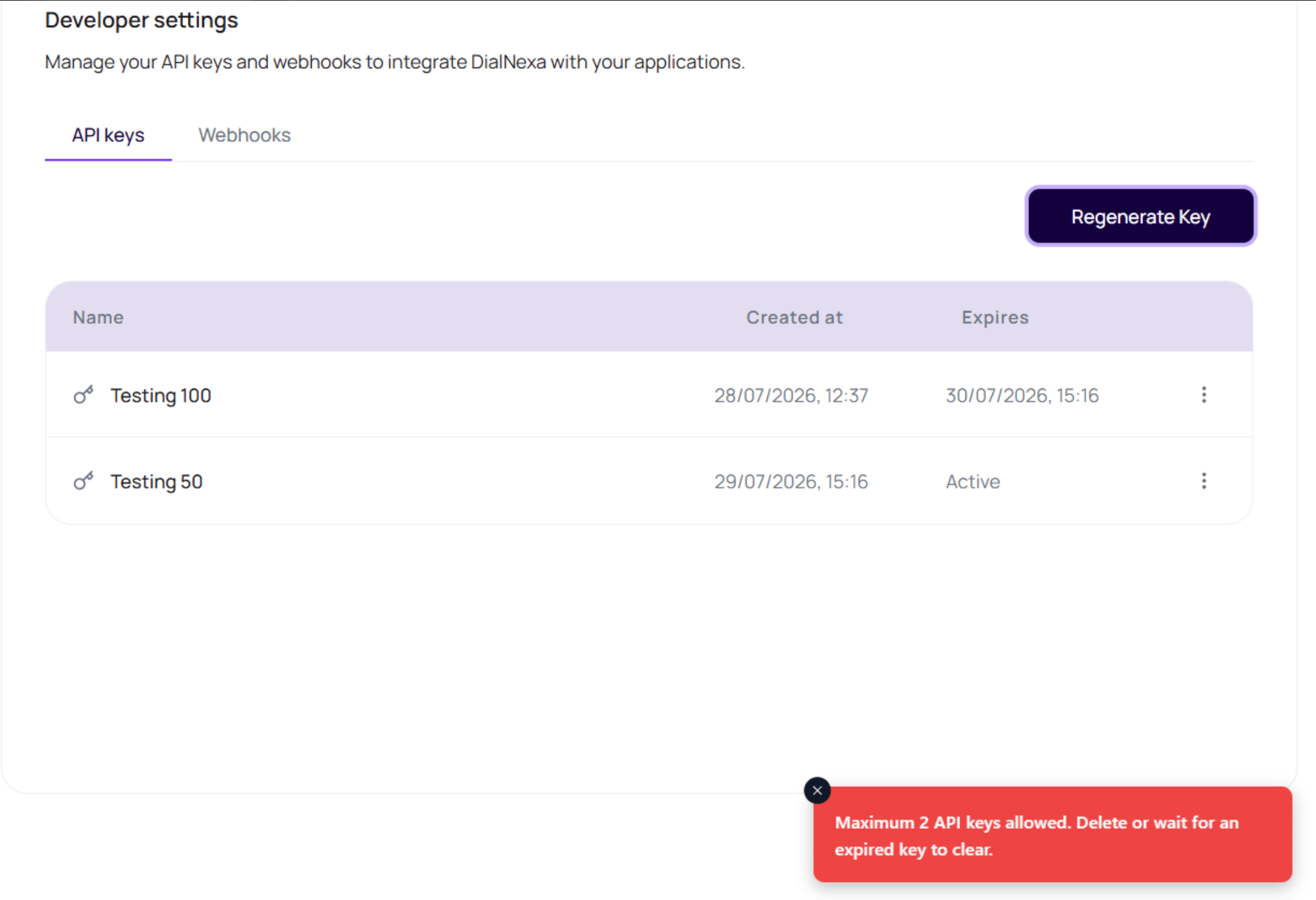
DialNexa API keys are organization-level credentials used by external systems to access DialNexa APIs. The Keys page lets users create the first key, see the raw key once, copy it immediately, edit key names, see whether each key is active or expiring, delete keys, and regenerate access with controlled expiration for the previous key.
 The raw API key is shown once. Copy it into a secret manager before closing the dialog, because the dashboard will not show the same raw value again.
## Before You Begin
Know which service will use the key, the minimum permissions it needs, the environment where it will be stored, and who owns rotation and incident response.
## API Key Actions
These actions are available from the Keys page.
| Action | Behavior |
| ---------------- | ----------------------------------------------------------------------------------------------------------------------------- |
| Create first key | Creates a named API key and shows the raw key once. |
| Regenerate key | Appears when a key already exists. It asks whether to expire the previous key now or in 24 hours before creating the new key. |
| Copy raw key | Copies the newly created key while the one-time dialog is open. |
| Edit key name | Changes the label used in the table. |
| Delete key | Removes the selected key. |
| Expires | Shows `Active` for keys without an expiry date, or the exact expiry timestamp for a key in its rotation window. |
DialNexa allows up to `2` API keys in the current dashboard flow. If the workspace already has two keys, delete an unused key or wait for an expiring key to clear before creating another one.
## Create A Key Safely
Use the workspace where the external system should connect.
Enter a name that identifies the system or environment.
Store it in your secret manager.
The raw key will not be shown again.
Use now or 24 hour expiration based on migration risk.
## API Key Mistakes
Keys are organization-scoped.
Use system and environment names.
Create a new key and rotate if the raw value was lost.
Use a secret manager, not messages or docs.
## Verify The API Key
Store the key in a secret manager, make one low-risk authenticated request, and confirm the expected response. Never paste the key into client-side code, screenshots, tickets, or documentation.
## Related Reading
Rotate keys safely.
Manage event verification secrets.
Configure event receivers.
The raw API key is shown once. Copy it into a secret manager before closing the dialog, because the dashboard will not show the same raw value again.
## Before You Begin
Know which service will use the key, the minimum permissions it needs, the environment where it will be stored, and who owns rotation and incident response.
## API Key Actions
These actions are available from the Keys page.
| Action | Behavior |
| ---------------- | ----------------------------------------------------------------------------------------------------------------------------- |
| Create first key | Creates a named API key and shows the raw key once. |
| Regenerate key | Appears when a key already exists. It asks whether to expire the previous key now or in 24 hours before creating the new key. |
| Copy raw key | Copies the newly created key while the one-time dialog is open. |
| Edit key name | Changes the label used in the table. |
| Delete key | Removes the selected key. |
| Expires | Shows `Active` for keys without an expiry date, or the exact expiry timestamp for a key in its rotation window. |
DialNexa allows up to `2` API keys in the current dashboard flow. If the workspace already has two keys, delete an unused key or wait for an expiring key to clear before creating another one.
## Create A Key Safely
Use the workspace where the external system should connect.
Enter a name that identifies the system or environment.
Store it in your secret manager.
The raw key will not be shown again.
Use now or 24 hour expiration based on migration risk.
## API Key Mistakes
Keys are organization-scoped.
Use system and environment names.
Create a new key and rotate if the raw value was lost.
Use a secret manager, not messages or docs.
## Verify The API Key
Store the key in a secret manager, make one low-risk authenticated request, and confirm the expected response. Never paste the key into client-side code, screenshots, tickets, or documentation.
## Related Reading
Rotate keys safely.
Manage event verification secrets.
Configure event receivers.