> ## Documentation Index
> Fetch the complete documentation index at: https://dialnexa.com/docs/llms.txt
> Use this file to discover all available pages before exploring further.
# DialNexa Batch Call Common Upload Errors
> Fix DialNexa batch call upload errors caused by phone numbers, file formats, size limits, variable headers, or route readiness.
Common DialNexa batch call upload errors usually come from file format, recipient phone number values, dynamic variable mapping, file size, or selected outbound route. Fix the mapped preview and phone-number review before saving or starting a campaign.
If the preview table looks wrong, the campaign will not become wiser after launch.
## DialNexa Batch Call Upload Error Checklist
Use this table before retrying an upload.
 | Problem | What to fix |
| ----------------------------- | -------------------------------------------------------------------------------------------------------------------------------------------------------- |
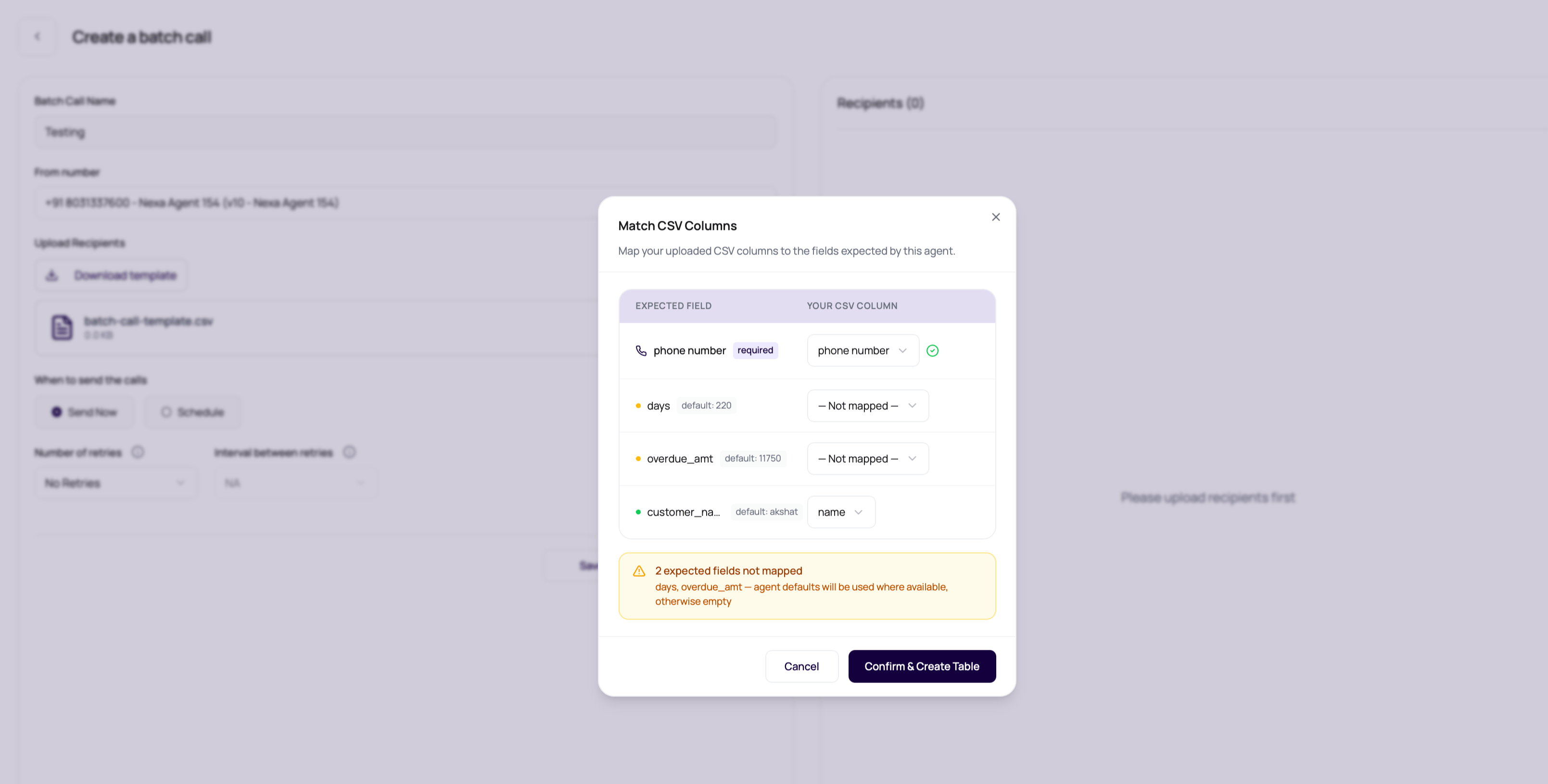
| No phone number column | Add a clear phone number column or choose the correct column in **Match CSV Columns**. |
| Unsupported file type | Upload a CSV or supported spreadsheet file. |
| File too large | Files are limited to 10 MB. Reduce the file size or split the campaign. |
| Variable header mismatch | Use **Match CSV Columns** to map your headers to the selected agent version variables. |
| Empty required values | Fill required recipient numbers and important variables. |
| Duplicate phone numbers | Leave **Skip duplicate phone numbers** on for one call per number, or remove the file and turn it off before upload when repeated calls are intentional. |
| No selected outbound number | Select a number with an outbound agent version before downloading or uploading the template. |
| Unsupported country or prefix | Enable the destination route in **Workspace Settings > Telephony Config**, or change the recipient number. |
| Row-level validation failures | Use **Review Invalid Phone Numbers** to edit or remove failed rows, or download the CSV from that review step for offline cleanup. |
## Destination Validation Errors
Recipient numbers are checked against the same [route rules](/docs/calls/phone-numbers#outbound-destination-validation) used by single outbound calls.
| Error type | What to fix |
| ------------------------------- | ------------------------------------------------------------------------------------------------------------- |
| Invalid phone number | Add the country code, remove extra characters, or correct the digit count. |
| Unsupported destination country | Enable the destination country in **Workspace Settings > Telephony Config**, or use a route that supports it. |
| Unsupported prefix | Check whether the number matches the most specific enabled network group prefix for that destination country. |
| No enabled countries configured | Enable at least one network group for the selected provider before uploading the file. |
The upload wizard now shows invalid phone numbers before the recipient table is accepted. Each row shows the source row number, phone number, validation reason, and current decision. Correct the number when the intended recipient is clear. Remove the row when the number is incomplete, belongs to an unsupported destination, or needs offline confirmation.
Rows left unresolved are removed by default before the reviewed file is accepted. Use **Download CSV** from the review step when the upload owner needs a cleanup file with the latest edit and remove decisions.
For direct API uploads, the create request still returns `400 Bad Request` when validation fails. The response groups failed rows by reason so API clients can repair the source file before retrying.
## Clean A Failed Upload
Use the template for the currently selected number and agent version.
Keep headers unchanged while moving rows over, or map your existing headers in the upload modal.
Avoid merged cells, hidden formulas, and non-CSV spreadsheet features.
Test the first few rows before uploading the full list.
Confirm phone numbers and variables appear in the expected columns.
## File Problems That Look Like Product Bugs
The agent expects the exact variable key after mapping. Use the modal to map readable headers to agent variable keys.
Check whether your file already includes country code before entering local digits.
The dashboard groups destination validation failures by message and row number. Use **Download CSV** in the phone-number review step when the list needs offline cleanup.
The create page skips duplicate phone numbers by default and keeps the first row for each non-empty number. Remove the uploaded file and turn off **Skip duplicate phone numbers** before uploading again if repeated calls are intentional.
CSV values with commas need proper quoting. Use a spreadsheet export instead of hand-editing when possible.
Template variables depend on the selected published agent version.
## Related Reading
Prepare a clean CSV.
Match headers to placeholders.
Review uploaded rows and outcomes.
| Problem | What to fix |
| ----------------------------- | -------------------------------------------------------------------------------------------------------------------------------------------------------- |
| No phone number column | Add a clear phone number column or choose the correct column in **Match CSV Columns**. |
| Unsupported file type | Upload a CSV or supported spreadsheet file. |
| File too large | Files are limited to 10 MB. Reduce the file size or split the campaign. |
| Variable header mismatch | Use **Match CSV Columns** to map your headers to the selected agent version variables. |
| Empty required values | Fill required recipient numbers and important variables. |
| Duplicate phone numbers | Leave **Skip duplicate phone numbers** on for one call per number, or remove the file and turn it off before upload when repeated calls are intentional. |
| No selected outbound number | Select a number with an outbound agent version before downloading or uploading the template. |
| Unsupported country or prefix | Enable the destination route in **Workspace Settings > Telephony Config**, or change the recipient number. |
| Row-level validation failures | Use **Review Invalid Phone Numbers** to edit or remove failed rows, or download the CSV from that review step for offline cleanup. |
## Destination Validation Errors
Recipient numbers are checked against the same [route rules](/docs/calls/phone-numbers#outbound-destination-validation) used by single outbound calls.
| Error type | What to fix |
| ------------------------------- | ------------------------------------------------------------------------------------------------------------- |
| Invalid phone number | Add the country code, remove extra characters, or correct the digit count. |
| Unsupported destination country | Enable the destination country in **Workspace Settings > Telephony Config**, or use a route that supports it. |
| Unsupported prefix | Check whether the number matches the most specific enabled network group prefix for that destination country. |
| No enabled countries configured | Enable at least one network group for the selected provider before uploading the file. |
The upload wizard now shows invalid phone numbers before the recipient table is accepted. Each row shows the source row number, phone number, validation reason, and current decision. Correct the number when the intended recipient is clear. Remove the row when the number is incomplete, belongs to an unsupported destination, or needs offline confirmation.
Rows left unresolved are removed by default before the reviewed file is accepted. Use **Download CSV** from the review step when the upload owner needs a cleanup file with the latest edit and remove decisions.
For direct API uploads, the create request still returns `400 Bad Request` when validation fails. The response groups failed rows by reason so API clients can repair the source file before retrying.
## Clean A Failed Upload
Use the template for the currently selected number and agent version.
Keep headers unchanged while moving rows over, or map your existing headers in the upload modal.
Avoid merged cells, hidden formulas, and non-CSV spreadsheet features.
Test the first few rows before uploading the full list.
Confirm phone numbers and variables appear in the expected columns.
## File Problems That Look Like Product Bugs
The agent expects the exact variable key after mapping. Use the modal to map readable headers to agent variable keys.
Check whether your file already includes country code before entering local digits.
The dashboard groups destination validation failures by message and row number. Use **Download CSV** in the phone-number review step when the list needs offline cleanup.
The create page skips duplicate phone numbers by default and keeps the first row for each non-empty number. Remove the uploaded file and turn off **Skip duplicate phone numbers** before uploading again if repeated calls are intentional.
CSV values with commas need proper quoting. Use a spreadsheet export instead of hand-editing when possible.
Template variables depend on the selected published agent version.
## Related Reading
Prepare a clean CSV.
Match headers to placeholders.
Review uploaded rows and outcomes.