> ## Documentation Index
> Fetch the complete documentation index at: https://dialnexa.com/docs/llms.txt
> Use this file to discover all available pages before exploring further.
# DialNexa Batch Call Drafts Scheduling And Starting
> Understand DialNexa batch call drafts, start now versus schedule, selected dates, saving campaigns, and starting outbound runs.
DialNexa batch calls can be prepared as drafts, started immediately, or scheduled for a later start time. Drafts are useful when teams need to review the recipient file, selected outbound number, retry settings, and campaign name before placing calls.
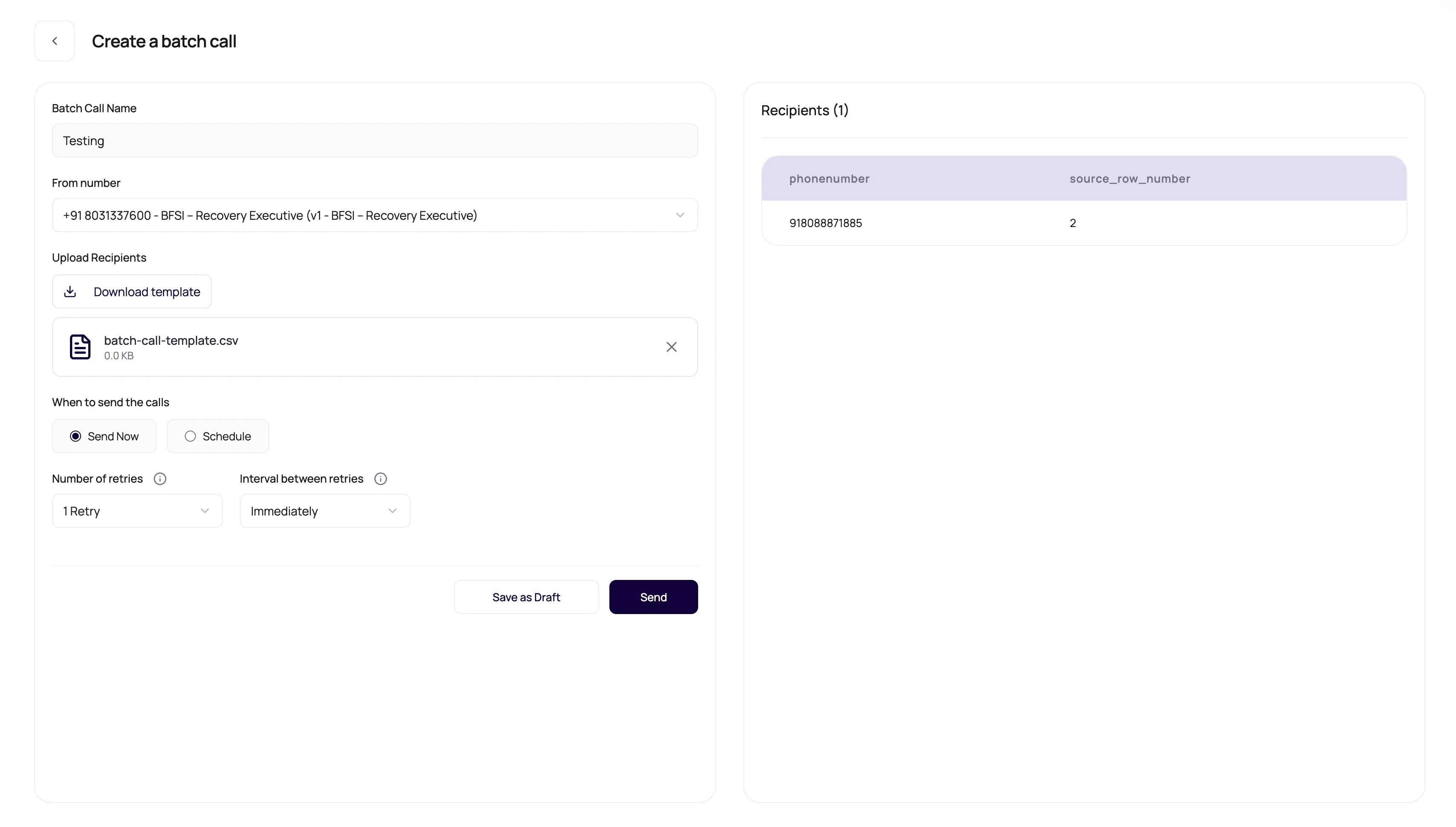 Drafts are where campaigns can be boring on purpose. Boring before launch is cheaper than exciting after launch.
## Before You Begin
Prepare a validated recipient file, tested agent version, assigned outbound number, schedule timezone, and retry policy. Confirm the workspace is ready for outbound calls.
## DialNexa Batch Draft Schedule And Launch Controls
These controls decide when calls begin.
| Control | Meaning |
| ------------------------ | -------------------------------------------------------------------------------------------------------------------------------------------------------------------------------------------------- |
| Campaign name | Human-readable name used in lists and exports. |
| Selected outbound number | Determines the agent version and caller route. |
| Send now | Starts the campaign as soon as the launch request is accepted. |
| Schedule | Stores a selected start date and time. |
| Save draft | Keeps the campaign editable before it is sent. |
| Start | Moves the campaign toward active call execution. |
| Retry count and interval | Retry count can be `0` through `5`. If retries are greater than `0`, the retry interval must also be greater than `0`. If the interval is greater than `0`, retries must also be greater than `0`. |
## Review Before Starting
Make it recognizable in Call History and exports.
A wrong outbound number means a wrong agent version.
Scan phone numbers and variable values.
Retries can multiply call attempts.
Make sure the start time matches operations coverage.
## Launch Questions
Treat started campaigns as live activity. Review drafts before launch.
Only numbers with outbound agent assignments are useful for batch calls.
Calling outside expected hours can hurt answer rates and customer experience.
## Verify The Launch
Confirm the campaign moves to the expected status, the scheduled time uses the intended timezone, calls appear in Call History, and paused or cancelled controls behave correctly on a test campaign.
## Launch Troubleshooting
If the campaign does not start, check KYC, wallet balance, outbound number assignment, published agent version, schedule time, retry count and interval, recipient validation, and whether another campaign is already running or waiting.
When a create request succeeds but another running, waiting, or nearby scheduled batch already exists, DialNexa can return a non-blocking warning. The new batch is created, but it may wait because one organization runs one batch at a time.
## Related Reading
Understand campaign setup.
Set retry behavior.
Watch campaign calls.
Drafts are where campaigns can be boring on purpose. Boring before launch is cheaper than exciting after launch.
## Before You Begin
Prepare a validated recipient file, tested agent version, assigned outbound number, schedule timezone, and retry policy. Confirm the workspace is ready for outbound calls.
## DialNexa Batch Draft Schedule And Launch Controls
These controls decide when calls begin.
| Control | Meaning |
| ------------------------ | -------------------------------------------------------------------------------------------------------------------------------------------------------------------------------------------------- |
| Campaign name | Human-readable name used in lists and exports. |
| Selected outbound number | Determines the agent version and caller route. |
| Send now | Starts the campaign as soon as the launch request is accepted. |
| Schedule | Stores a selected start date and time. |
| Save draft | Keeps the campaign editable before it is sent. |
| Start | Moves the campaign toward active call execution. |
| Retry count and interval | Retry count can be `0` through `5`. If retries are greater than `0`, the retry interval must also be greater than `0`. If the interval is greater than `0`, retries must also be greater than `0`. |
## Review Before Starting
Make it recognizable in Call History and exports.
A wrong outbound number means a wrong agent version.
Scan phone numbers and variable values.
Retries can multiply call attempts.
Make sure the start time matches operations coverage.
## Launch Questions
Treat started campaigns as live activity. Review drafts before launch.
Only numbers with outbound agent assignments are useful for batch calls.
Calling outside expected hours can hurt answer rates and customer experience.
## Verify The Launch
Confirm the campaign moves to the expected status, the scheduled time uses the intended timezone, calls appear in Call History, and paused or cancelled controls behave correctly on a test campaign.
## Launch Troubleshooting
If the campaign does not start, check KYC, wallet balance, outbound number assignment, published agent version, schedule time, retry count and interval, recipient validation, and whether another campaign is already running or waiting.
When a create request succeeds but another running, waiting, or nearby scheduled batch already exists, DialNexa can return a non-blocking warning. The new batch is created, but it may wait because one organization runs one batch at a time.
## Related Reading
Understand campaign setup.
Set retry behavior.
Watch campaign calls.