> ## Documentation Index
> Fetch the complete documentation index at: https://dialnexa.com/docs/llms.txt
> Use this file to discover all available pages before exploring further.
# DialNexa Batch Call Recipient Files
> Prepare DialNexa batch call CSV files with valid phone numbers, dynamic variable columns, field mapping, and upload checks.
DialNexa batch call recipient files provide the phone numbers and dynamic variable values for outbound campaigns. The create page can download a CSV template based on the selected agent version default variables, then guide operators through mapping, optional name cleanup, phone-number review, and the recipient table.
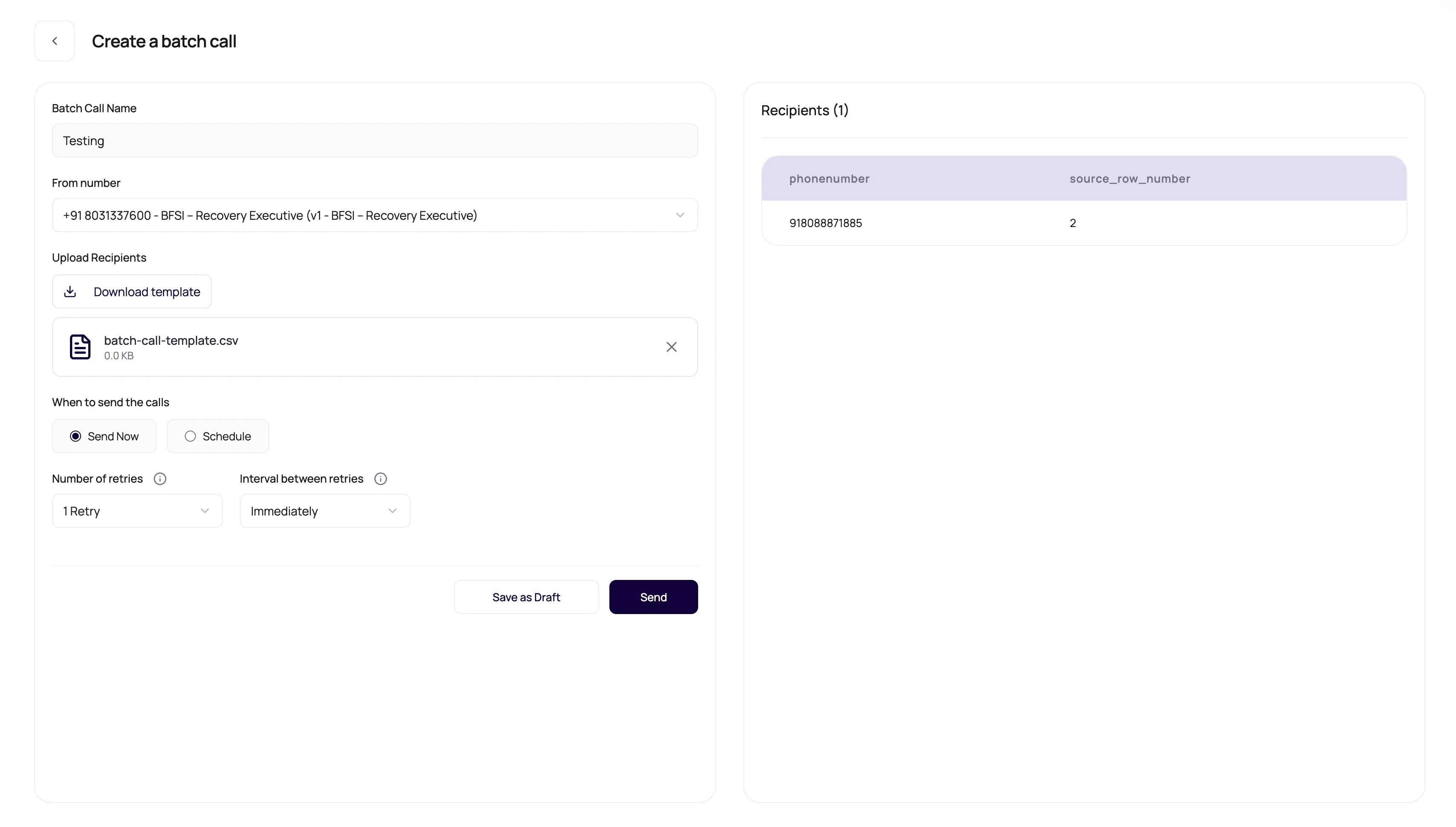 CSV files are simple right up until one header has an invisible extra space. Then they become a personality test.
## Before You Begin
List the variables used by the published agent and collect one valid recipient row for each important scenario. Use consented test numbers before preparing a production file.
## Expected CSV Shape
Keep recipient files boring and predictable.
| Column | Purpose |
| ------------------------ | ------------------------------------------------------------------------------------------------------------------- |
| phone number | Recipient number in a format the selected outbound route can validate. Use full international format when possible. |
| Dynamic variable columns | Values for placeholders used by the selected published agent version. |
| Additional columns | Can be shown in the recipient table when parsed, but should not replace required variables. |
| One recipient per row | Each row represents one outbound call target. |
The upload flow reads headers from CSV files and supported spreadsheet files. For Excel uploads, DialNexa converts the mapped sheet data to CSV before sending it for campaign parsing.
## Upload Wizard Steps
The batch upload wizard keeps each review step explicit before the recipient table is accepted.
| Step | What the operator checks |
| ---------------------------- | ------------------------------------------------------------------------------------------------------------------------------ |
| Match CSV Columns | Confirms the phone-number column, expected dynamic variables, defaulted values, and extra columns. |
| AI Name Cleanup | Optionally chooses a name column, then asks Claude for cleaner first-name suggestions for batches with up to `1,000` contacts. |
| Review Invalid Phone Numbers | Shows rows that failed destination validation so the operator can edit or remove them before launch. |
| Finish | Accepts the current reviewed file and closes the wizard when no invalid rows remain. |
If a new upload is cancelled during review, DialNexa restores the previous recipient state instead of leaving a partial file attached to the campaign.
## Template Behavior
The download template changes with the selected number and agent version.
The template uses default dynamic variable keys from the selected agent version when available.
If no agent variables are available, the template includes generic placeholder variable columns.
Parsed recipients are displayed in a table before launch.
The page validates CSV type and rejects large or invalid uploads.
## Match Uploaded Columns
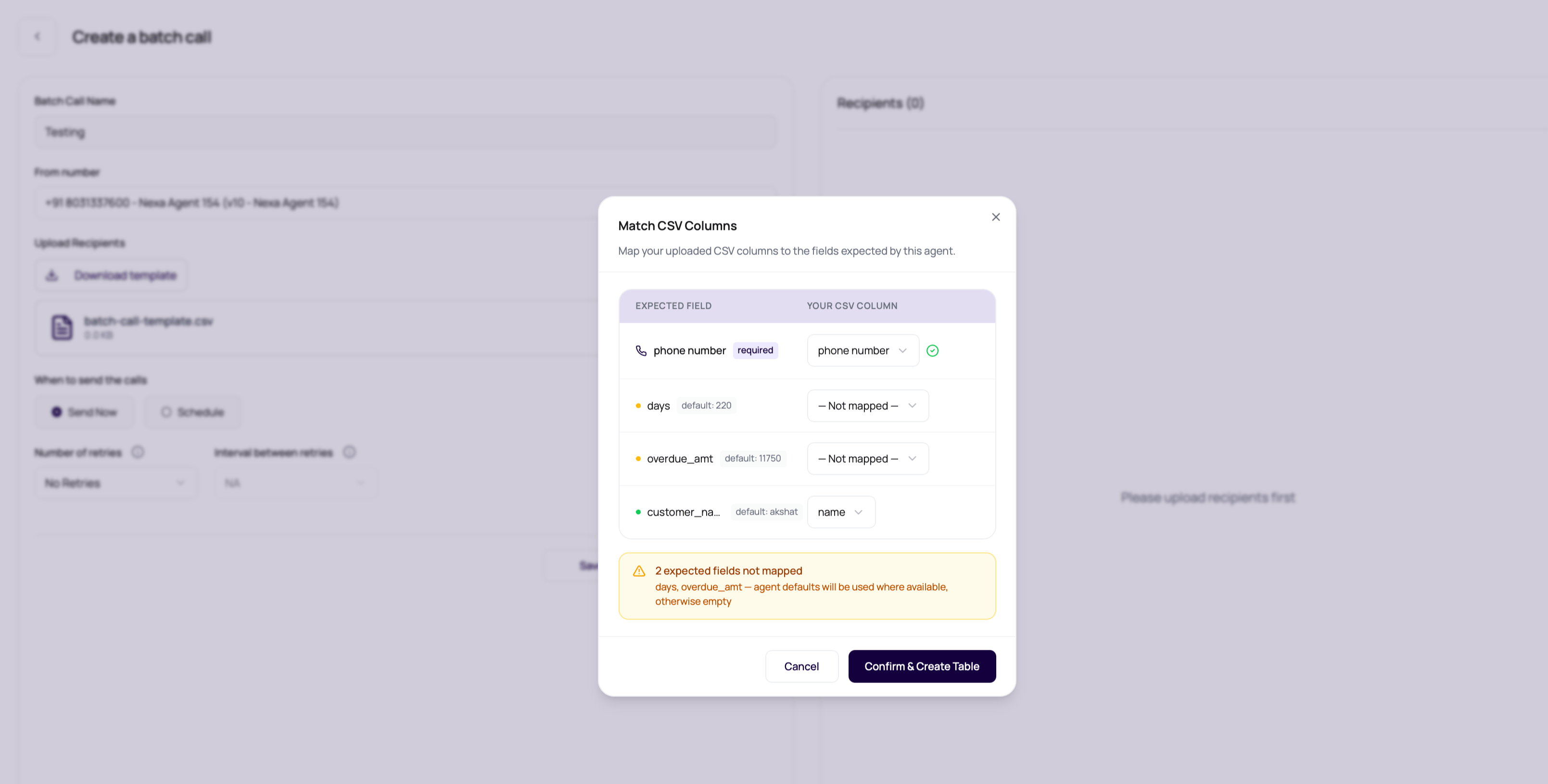
After upload, the **Match CSV Columns** modal lets you align the file with the selected agent version before the table is created.
CSV files are simple right up until one header has an invisible extra space. Then they become a personality test.
## Before You Begin
List the variables used by the published agent and collect one valid recipient row for each important scenario. Use consented test numbers before preparing a production file.
## Expected CSV Shape
Keep recipient files boring and predictable.
| Column | Purpose |
| ------------------------ | ------------------------------------------------------------------------------------------------------------------- |
| phone number | Recipient number in a format the selected outbound route can validate. Use full international format when possible. |
| Dynamic variable columns | Values for placeholders used by the selected published agent version. |
| Additional columns | Can be shown in the recipient table when parsed, but should not replace required variables. |
| One recipient per row | Each row represents one outbound call target. |
The upload flow reads headers from CSV files and supported spreadsheet files. For Excel uploads, DialNexa converts the mapped sheet data to CSV before sending it for campaign parsing.
## Upload Wizard Steps
The batch upload wizard keeps each review step explicit before the recipient table is accepted.
| Step | What the operator checks |
| ---------------------------- | ------------------------------------------------------------------------------------------------------------------------------ |
| Match CSV Columns | Confirms the phone-number column, expected dynamic variables, defaulted values, and extra columns. |
| AI Name Cleanup | Optionally chooses a name column, then asks Claude for cleaner first-name suggestions for batches with up to `1,000` contacts. |
| Review Invalid Phone Numbers | Shows rows that failed destination validation so the operator can edit or remove them before launch. |
| Finish | Accepts the current reviewed file and closes the wizard when no invalid rows remain. |
If a new upload is cancelled during review, DialNexa restores the previous recipient state instead of leaving a partial file attached to the campaign.
## Template Behavior
The download template changes with the selected number and agent version.
The template uses default dynamic variable keys from the selected agent version when available.
If no agent variables are available, the template includes generic placeholder variable columns.
Parsed recipients are displayed in a table before launch.
The page validates CSV type and rejects large or invalid uploads.
## Match Uploaded Columns
After upload, the **Match CSV Columns** modal lets you align the file with the selected agent version before the table is created.
 | Modal area | Behavior |
| ----------------- | ------------------------------------------------------------------------------------------------------------------------------------- |
| Phone number | Auto-detects common headers such as `phone`, `mobile`, `contact_number`, or `telephone`. You can choose a different column if needed. |
| Dynamic variables | Auto-matches exact, case-insensitive, and normalized header names for expected variables. |
| Defaults | Shows agent default values next to variables that have fallbacks. |
| Unmapped fields | Warns when expected variables are not mapped. Defaults are used where available, otherwise values are empty. |
| Extra columns | Shows columns that will remain visible in the table but will not be used during calls. |
When you confirm the mapping, DialNexa normalizes the selected phone column to `phonenumber` and renames mapped variable columns to the expected agent variable keys. This lets operators upload files with readable business headers without editing the source spreadsheet first.
## Review AI Name Suggestions
After column mapping, the wizard opens an optional AI Name Cleanup step. The dashboard can auto-select a likely name column, but the operator can choose a different column or skip the step. If a column is selected and the file has fewer than `1,000` leads, Claude checks the names for cleanup suggestions before the recipient table is built. If name cleanup fails, DialNexa shows an empty review state and continues with the original names.
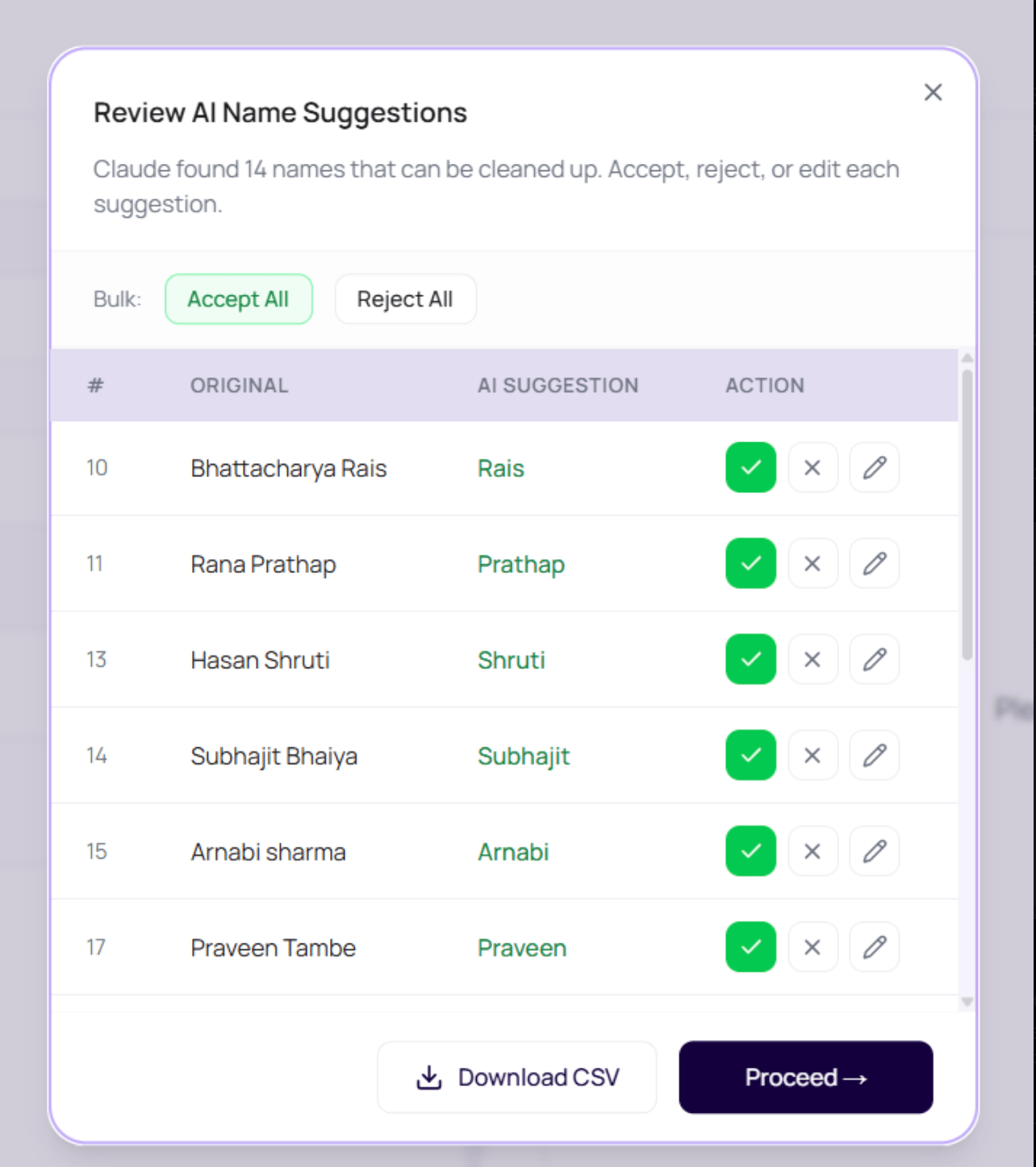
The **Review AI Name Suggestions** modal shows the original value, the suggested value, and row-level controls.
| Modal area | Behavior |
| ----------------- | ------------------------------------------------------------------------------------------------------------------------------------- |
| Phone number | Auto-detects common headers such as `phone`, `mobile`, `contact_number`, or `telephone`. You can choose a different column if needed. |
| Dynamic variables | Auto-matches exact, case-insensitive, and normalized header names for expected variables. |
| Defaults | Shows agent default values next to variables that have fallbacks. |
| Unmapped fields | Warns when expected variables are not mapped. Defaults are used where available, otherwise values are empty. |
| Extra columns | Shows columns that will remain visible in the table but will not be used during calls. |
When you confirm the mapping, DialNexa normalizes the selected phone column to `phonenumber` and renames mapped variable columns to the expected agent variable keys. This lets operators upload files with readable business headers without editing the source spreadsheet first.
## Review AI Name Suggestions
After column mapping, the wizard opens an optional AI Name Cleanup step. The dashboard can auto-select a likely name column, but the operator can choose a different column or skip the step. If a column is selected and the file has fewer than `1,000` leads, Claude checks the names for cleanup suggestions before the recipient table is built. If name cleanup fails, DialNexa shows an empty review state and continues with the original names.
The **Review AI Name Suggestions** modal shows the original value, the suggested value, and row-level controls.
 | Control | Behavior |
| ------------------------ | ------------------------------------------------------------------- |
| Accept | Uses the suggested clean name for that row. |
| Reject | Keeps the original uploaded name. |
| Edit | Lets the operator type a custom replacement. |
| Accept All or Reject All | Applies the same decision to every suggested row. |
| Download CSV | Downloads a reviewed CSV before proceeding. |
| Proceed | Applies accepted or edited names, then continues recipient parsing. |
| Skip | Bypasses AI name cleanup and continues to phone-number validation. |
For batches over `1,000` contacts, the dashboard skips AI name cleanup and shows a warning. Review names in the source file before upload when large campaigns need standardized salutations.
## Review Invalid Phone Numbers
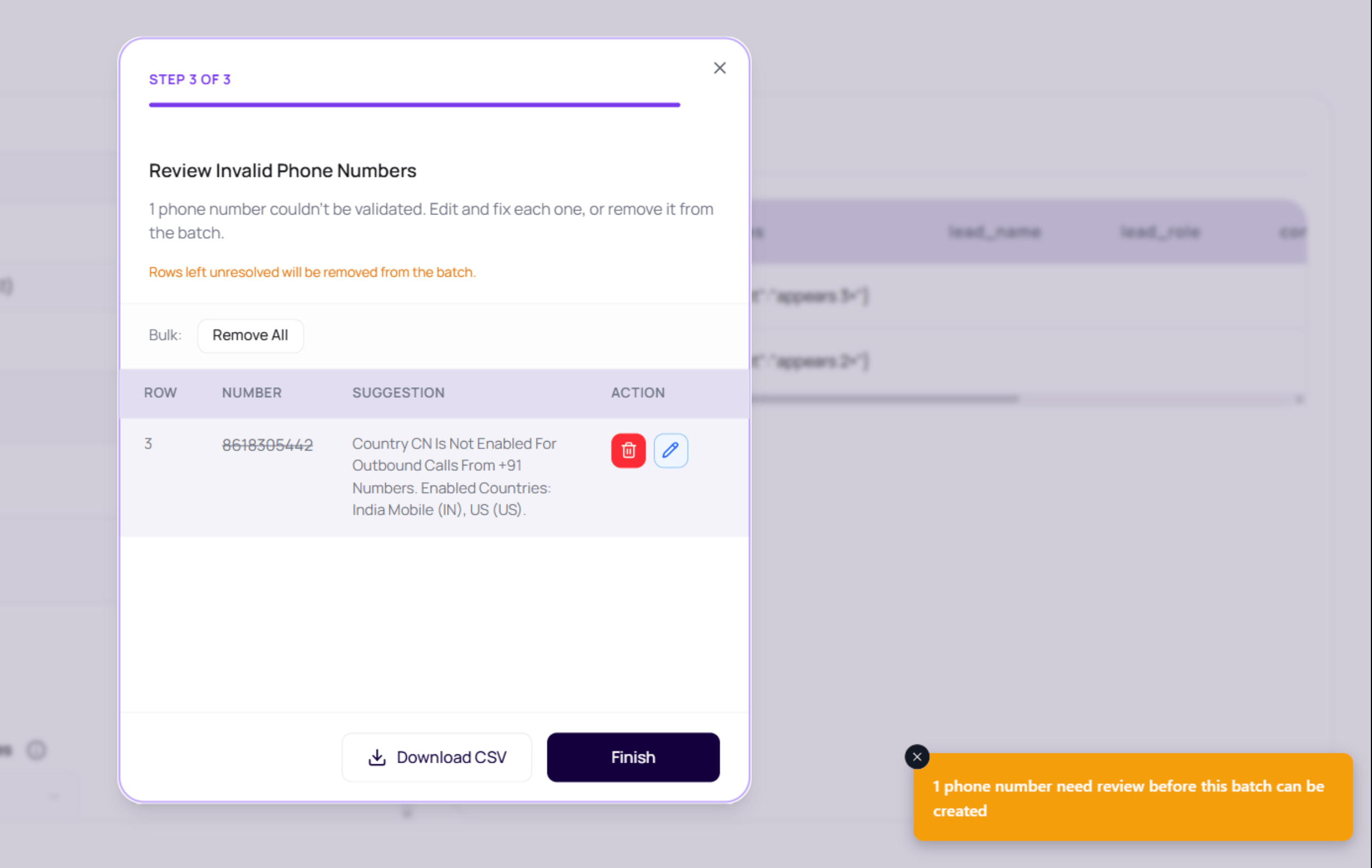
After mapping and name review, the dashboard validates the selected phone column against the outbound route. Invalid rows open the **Review Invalid Phone Numbers** step.
| Control | Behavior |
| ------------------------ | ------------------------------------------------------------------- |
| Accept | Uses the suggested clean name for that row. |
| Reject | Keeps the original uploaded name. |
| Edit | Lets the operator type a custom replacement. |
| Accept All or Reject All | Applies the same decision to every suggested row. |
| Download CSV | Downloads a reviewed CSV before proceeding. |
| Proceed | Applies accepted or edited names, then continues recipient parsing. |
| Skip | Bypasses AI name cleanup and continues to phone-number validation. |
For batches over `1,000` contacts, the dashboard skips AI name cleanup and shows a warning. Review names in the source file before upload when large campaigns need standardized salutations.
## Review Invalid Phone Numbers
After mapping and name review, the dashboard validates the selected phone column against the outbound route. Invalid rows open the **Review Invalid Phone Numbers** step.
 | Action | Behavior |
| ------------ | --------------------------------------------------------------------------- |
| Edit | Corrects the number in that row and validates the file again. |
| Remove | Drops that row from the batch. Rows left unresolved are removed by default. |
| Remove All | Marks every invalid row for removal. |
| Download CSV | Downloads the current invalid-row decisions for offline review. |
| Finish | Accepts the file once the invalid-row list is empty. |
Each invalid row keeps its original source row number, mapped phone value, validation message, and current decision. This matters when a spreadsheet owner needs to repair the source file later, because the operator can point to the exact row instead of describing a general upload failure.
| Row state | Result |
| --------------------------- | ----------------------------------------------------------------------------------------------- |
| Corrected and valid | The row stays in the batch with the corrected number. |
| Corrected but still invalid | The row remains in review with the latest validation reason. |
| Removed | The row is excluded from the recipient table. |
| Left unresolved | The row is removed by default before the reviewed file is accepted. |
| Downloaded for review | The CSV reflects the current edit or remove decisions so cleanup can continue outside DialNexa. |
DialNexa can normalize Indian numbers that explicitly include the `91`, `+91`, or `0091` country code. It does not guess that a bare `10` digit number is Indian, because that could rewrite a real number from another country. Use full international format when possible.
## Duplicate Phone Number Handling
The create page skips duplicate phone numbers by default before the recipient table is built. When the same non-empty phone number appears more than once, DialNexa keeps the first mapped row and removes later rows with that number. After upload, the page shows how many duplicate phone numbers were skipped.
| Control | Behavior |
| --------------------------------- | -------------------------------------------------------------------------------------------------- |
| Skip duplicate phone numbers | Enabled by default before file upload. Leave it on when each phone number should receive one call. |
| Duplicate non-empty phone numbers | Only the first mapped row for that number is kept. Later rows are removed before campaign parsing. |
| Empty phone numbers | Rows without a phone number still pass through so backend validation can report the missing value. |
| Changing the duplicate setting | Remove the uploaded file first, then turn the setting on or off before uploading again. |
Turn duplicate skipping off only when repeated calls to the same phone number are intentional for that campaign.
## Prepare A Clean File
Keep the title at `35` characters or fewer. Longer titles are rejected before launch.
This lets the page know which agent version variables to use.
Start with headers that match the selected agent.
Use production-ready names, dates, amounts, and transfer destinations.
Check the preview table before saving or starting.
Do not launch a file whose preview already looks wrong.
## File Requirements
| Requirement | Value |
| ----------------- | --------------------------------------------------------------------------------------------- |
| File type | CSV or Excel |
| Maximum file size | 10 MB |
| Structure | One recipient per row, headers matching the downloaded template or mapped in the upload modal |
## When Rows Fail Validation
The upload parser checks recipient phone numbers against the same [destination validation rules](/docs/calls/phone-numbers#outbound-destination-validation) used by single outbound calls. Duplicate removal happens before this validation when **Skip duplicate phone numbers** is enabled. Failed rows appear in the phone-number review step, grouped with the validation reason. See [Common Upload Errors](/docs/batch-calls/common-upload-errors) for each error type, what it means, and how to fix the file.
## Verify The Recipient File
After upload, confirm the phone-number column, variable mappings, row count, duplicate handling, and validation results. Run a small batch and verify that spoken values match the intended CSV row.
## Related Reading
Map variables to CSV columns.
Fix file issues.
Review row outcomes.
| Action | Behavior |
| ------------ | --------------------------------------------------------------------------- |
| Edit | Corrects the number in that row and validates the file again. |
| Remove | Drops that row from the batch. Rows left unresolved are removed by default. |
| Remove All | Marks every invalid row for removal. |
| Download CSV | Downloads the current invalid-row decisions for offline review. |
| Finish | Accepts the file once the invalid-row list is empty. |
Each invalid row keeps its original source row number, mapped phone value, validation message, and current decision. This matters when a spreadsheet owner needs to repair the source file later, because the operator can point to the exact row instead of describing a general upload failure.
| Row state | Result |
| --------------------------- | ----------------------------------------------------------------------------------------------- |
| Corrected and valid | The row stays in the batch with the corrected number. |
| Corrected but still invalid | The row remains in review with the latest validation reason. |
| Removed | The row is excluded from the recipient table. |
| Left unresolved | The row is removed by default before the reviewed file is accepted. |
| Downloaded for review | The CSV reflects the current edit or remove decisions so cleanup can continue outside DialNexa. |
DialNexa can normalize Indian numbers that explicitly include the `91`, `+91`, or `0091` country code. It does not guess that a bare `10` digit number is Indian, because that could rewrite a real number from another country. Use full international format when possible.
## Duplicate Phone Number Handling
The create page skips duplicate phone numbers by default before the recipient table is built. When the same non-empty phone number appears more than once, DialNexa keeps the first mapped row and removes later rows with that number. After upload, the page shows how many duplicate phone numbers were skipped.
| Control | Behavior |
| --------------------------------- | -------------------------------------------------------------------------------------------------- |
| Skip duplicate phone numbers | Enabled by default before file upload. Leave it on when each phone number should receive one call. |
| Duplicate non-empty phone numbers | Only the first mapped row for that number is kept. Later rows are removed before campaign parsing. |
| Empty phone numbers | Rows without a phone number still pass through so backend validation can report the missing value. |
| Changing the duplicate setting | Remove the uploaded file first, then turn the setting on or off before uploading again. |
Turn duplicate skipping off only when repeated calls to the same phone number are intentional for that campaign.
## Prepare A Clean File
Keep the title at `35` characters or fewer. Longer titles are rejected before launch.
This lets the page know which agent version variables to use.
Start with headers that match the selected agent.
Use production-ready names, dates, amounts, and transfer destinations.
Check the preview table before saving or starting.
Do not launch a file whose preview already looks wrong.
## File Requirements
| Requirement | Value |
| ----------------- | --------------------------------------------------------------------------------------------- |
| File type | CSV or Excel |
| Maximum file size | 10 MB |
| Structure | One recipient per row, headers matching the downloaded template or mapped in the upload modal |
## When Rows Fail Validation
The upload parser checks recipient phone numbers against the same [destination validation rules](/docs/calls/phone-numbers#outbound-destination-validation) used by single outbound calls. Duplicate removal happens before this validation when **Skip duplicate phone numbers** is enabled. Failed rows appear in the phone-number review step, grouped with the validation reason. See [Common Upload Errors](/docs/batch-calls/common-upload-errors) for each error type, what it means, and how to fix the file.
## Verify The Recipient File
After upload, confirm the phone-number column, variable mappings, row count, duplicate handling, and validation results. Run a small batch and verify that spoken values match the intended CSV row.
## Related Reading
Map variables to CSV columns.
Fix file issues.
Review row outcomes.