> ## Documentation Index
> Fetch the complete documentation index at: https://dialnexa.com/docs/llms.txt
> Use this file to discover all available pages before exploring further.
# DialNexa Billing And Wallet
> Understand DialNexa billing and wallet context, including wallet balance, recharge entry points, transactions, call costs, and outbound planning.
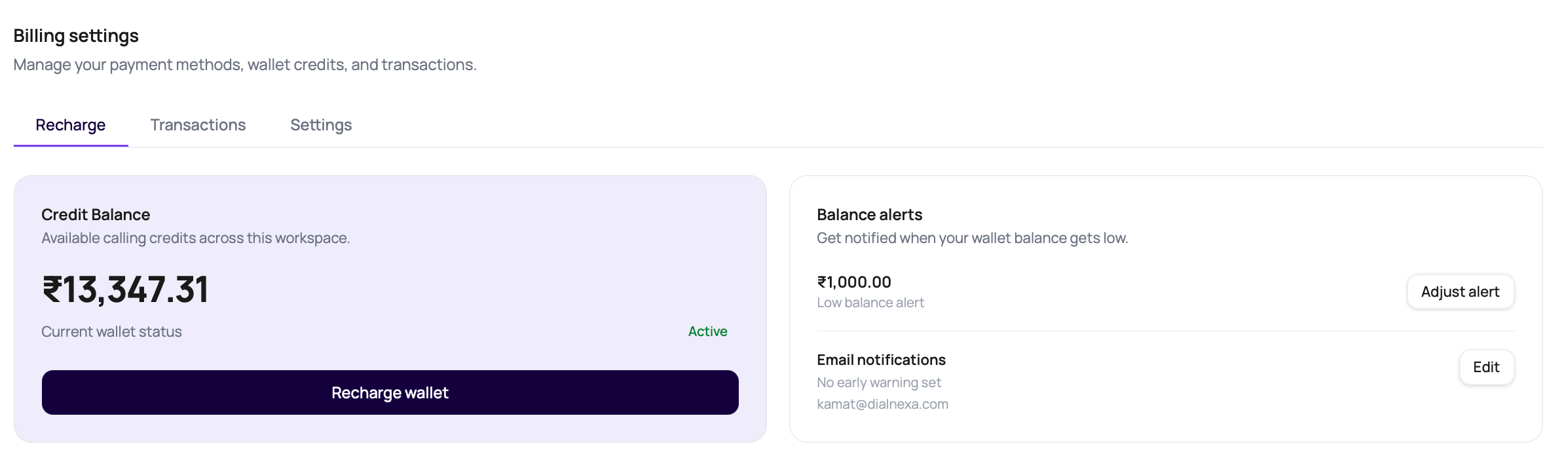
DialNexa billing and wallet context helps users understand spend before launching outbound activity. Workspace Settings includes a Billing page with Recharge, Transactions, and Settings tabs, plus low balance alerts, early warning emails, and transaction details for call charges. Agent builder selectors, SIP trunking, and call records can also expose cost-related evidence.
 Call quality is important. So is not discovering budget reality after a campaign has already run.
## Where Spend Context Appears
Billing signals are split between account context and call evidence.
The Billing Recharge tab shows balance, wallet status, low balance alerts, and recharge access.
Wallet transaction history helps reconcile account activity.
Call logs can include duration, credits consumed, latency, and cost-related fields.
Phone number records can include rental dates and renewal information.
Agent builder selectors can show INR per-minute components for LLM, voice, and transcriber choices.
Cloud workflow actions can create batched integration charges.
## Current Billing Wallet Behavior
For organizations on the current billing system, **Workspace Settings > Billing** shows the active organization's INR balance, recharge controls, transaction history, and billing contact details.
| Area | Current behavior |
| ----------------------- | ----------------------------------------------------------------------------------------------------------------------------------------------------------------------------------------------------------------------------------------------- |
| Recharge tab | Shows the latest `balance_inr`, a wallet status of Active, Overdue, or No balance, low balance alert controls, email notifications, and a **Recharge wallet** button. |
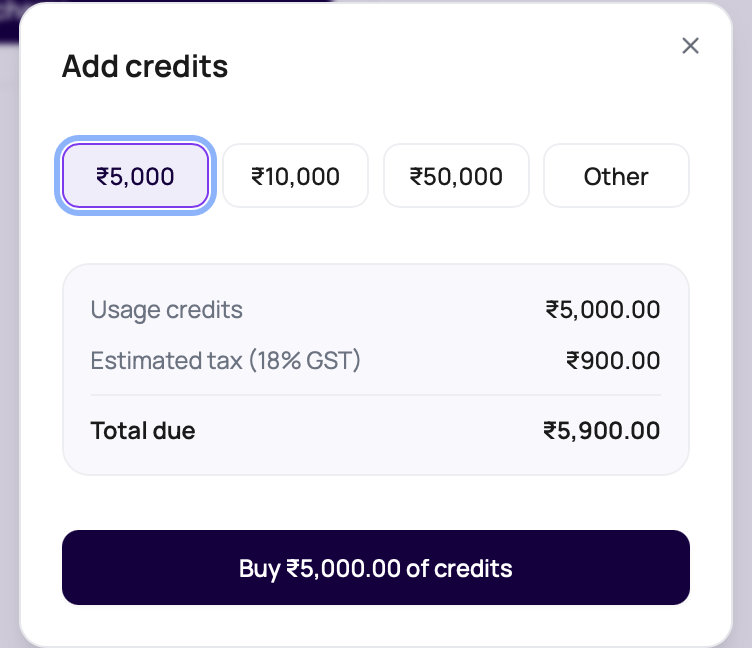
| Add credits modal | Offers `₹5,000`, `₹10,000`, `₹50,000`, and Other. Custom amounts must be between `₹1,000` and `₹10,00,000`. |
| Payment total | Adds estimated `18% GST` to the selected usage credits. Razorpay charges the total due in INR, while wallet credits exclude GST. |
| Low balance alert | Sends an email when wallet balance drops below the configured amount. The minimum alert value is `₹100`. |
| Early warning threshold | Sends an earlier email before the main low balance alert. The minimum value is `₹200`, and it must be higher than the low balance alert when both are set. |
| Alert recipients | Supports up to `5` custom email recipients. If the recipient list is empty, alerts go to the workspace owner. |
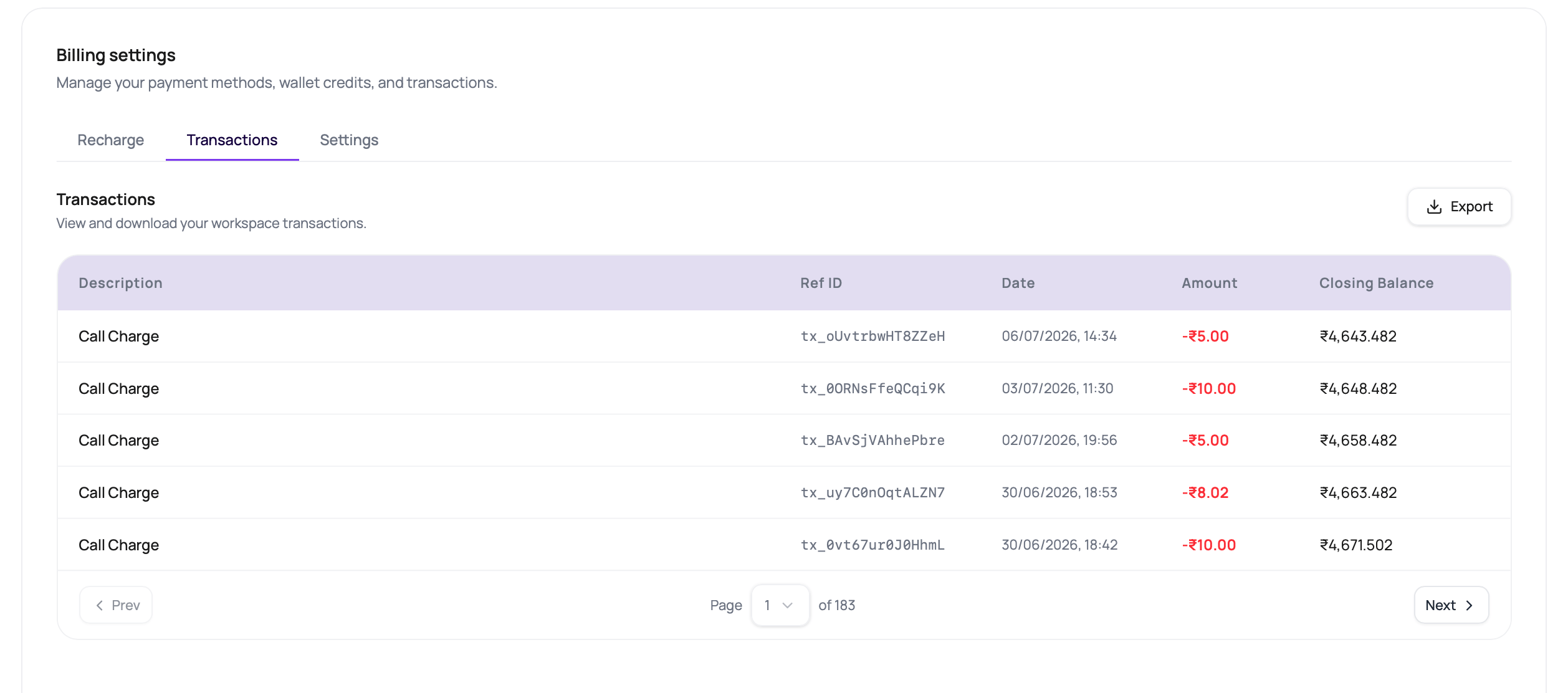
| Transactions tab | Shows paginated wallet transactions with description, reference ID, date, amount, closing balance, and expandable positive-value call-charge line items when available. Amounts and closing balances are shown with exactly two decimal places. |
| Export | Downloads all available billing transactions as `transactions-YYYY-MM-DD.csv`. |
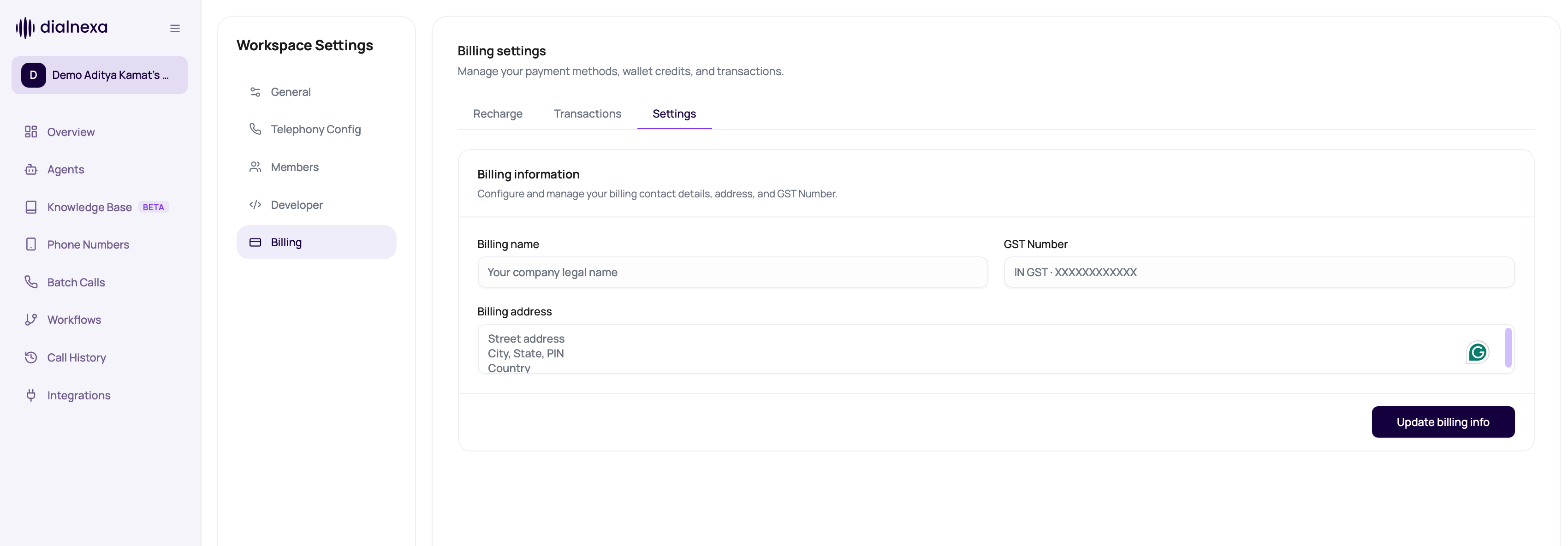
| Billing settings tab | Stores billing name, billing address, and GST Number for the workspace. |
| Rate preview | Shows LLM, voice model, transcriber, telephony, or SIP/BYOC rates when the organization billing plan exposes them. |
| Integration billing | Composio workflow executions are counted in groups of `100` and billed at approximately `INR 1.79` per batch. These deductions do not block workflow execution and can move the wallet negative. |
| Legacy organizations | May not show current billing wallet data until migrated to the new billing system. |
Use the Billing Recharge tab for self-serve top-ups, or contact DialNexa support for bank-transfer credits and billing corrections.
Call quality is important. So is not discovering budget reality after a campaign has already run.
## Where Spend Context Appears
Billing signals are split between account context and call evidence.
The Billing Recharge tab shows balance, wallet status, low balance alerts, and recharge access.
Wallet transaction history helps reconcile account activity.
Call logs can include duration, credits consumed, latency, and cost-related fields.
Phone number records can include rental dates and renewal information.
Agent builder selectors can show INR per-minute components for LLM, voice, and transcriber choices.
Cloud workflow actions can create batched integration charges.
## Current Billing Wallet Behavior
For organizations on the current billing system, **Workspace Settings > Billing** shows the active organization's INR balance, recharge controls, transaction history, and billing contact details.
| Area | Current behavior |
| ----------------------- | ----------------------------------------------------------------------------------------------------------------------------------------------------------------------------------------------------------------------------------------------- |
| Recharge tab | Shows the latest `balance_inr`, a wallet status of Active, Overdue, or No balance, low balance alert controls, email notifications, and a **Recharge wallet** button. |
| Add credits modal | Offers `₹5,000`, `₹10,000`, `₹50,000`, and Other. Custom amounts must be between `₹1,000` and `₹10,00,000`. |
| Payment total | Adds estimated `18% GST` to the selected usage credits. Razorpay charges the total due in INR, while wallet credits exclude GST. |
| Low balance alert | Sends an email when wallet balance drops below the configured amount. The minimum alert value is `₹100`. |
| Early warning threshold | Sends an earlier email before the main low balance alert. The minimum value is `₹200`, and it must be higher than the low balance alert when both are set. |
| Alert recipients | Supports up to `5` custom email recipients. If the recipient list is empty, alerts go to the workspace owner. |
| Transactions tab | Shows paginated wallet transactions with description, reference ID, date, amount, closing balance, and expandable positive-value call-charge line items when available. Amounts and closing balances are shown with exactly two decimal places. |
| Export | Downloads all available billing transactions as `transactions-YYYY-MM-DD.csv`. |
| Billing settings tab | Stores billing name, billing address, and GST Number for the workspace. |
| Rate preview | Shows LLM, voice model, transcriber, telephony, or SIP/BYOC rates when the organization billing plan exposes them. |
| Integration billing | Composio workflow executions are counted in groups of `100` and billed at approximately `INR 1.79` per batch. These deductions do not block workflow execution and can move the wallet negative. |
| Legacy organizations | May not show current billing wallet data until migrated to the new billing system. |
Use the Billing Recharge tab for self-serve top-ups, or contact DialNexa support for bank-transfer credits and billing corrections.
 ## Recharge And Billing Settings
Go to **Workspace Settings > Billing** and choose the Recharge, Transactions, or Settings tab.
Confirm whether the balance is Active, Overdue, or No balance before launching outbound traffic.
Choose a preset amount or Other, review the 18% GST estimate, and complete the INR payment through Razorpay.
Set a low balance alert, optionally add an early warning threshold, and choose up to five email recipients for alert delivery.
Use the Transactions tab export when finance or operations needs an offline reconciliation file.
Save the legal billing name, billing address, and GST Number from the Settings tab.
## Recharge And Billing Settings
Go to **Workspace Settings > Billing** and choose the Recharge, Transactions, or Settings tab.
Confirm whether the balance is Active, Overdue, or No balance before launching outbound traffic.
Choose a preset amount or Other, review the 18% GST estimate, and complete the INR payment through Razorpay.
Set a low balance alert, optionally add an early warning threshold, and choose up to five email recipients for alert delivery.
Use the Transactions tab export when finance or operations needs an offline reconciliation file.
Save the legal billing name, billing address, and GST Number from the Settings tab.
 ## Spend Planning Checks
Use these checks before campaign launch.
| Check | Reason |
| -------------------------- | ------------------------------------------------------------------------------------- |
| Wallet balance | Avoid campaign interruption or billing surprises. |
| Low balance alert | Receive a balance email before the workspace drops below the amount you set. |
| Transaction history | Compare debits and recharges with expected campaign or workflow usage before scaling. |
| Recipient count | CSV size controls how many calls may be placed. |
| Retry policy | Retries can increase the number of attempts beyond recipient count. |
| Max call duration | Long call limits can increase spend if conversations run long. |
| Workflow Application nodes | Cloud integration actions can add batched integration charges. |
| Phone number rental status | Expired or reassignment-ready numbers should not be used for critical launches. |
## Review Costs After Calls
## Spend Planning Checks
Use these checks before campaign launch.
| Check | Reason |
| -------------------------- | ------------------------------------------------------------------------------------- |
| Wallet balance | Avoid campaign interruption or billing surprises. |
| Low balance alert | Receive a balance email before the workspace drops below the amount you set. |
| Transaction history | Compare debits and recharges with expected campaign or workflow usage before scaling. |
| Recipient count | CSV size controls how many calls may be placed. |
| Retry policy | Retries can increase the number of attempts beyond recipient count. |
| Max call duration | Long call limits can increase spend if conversations run long. |
| Workflow Application nodes | Cloud integration actions can add batched integration charges. |
| Phone number rental status | Expired or reassignment-ready numbers should not be used for critical launches. |
## Review Costs After Calls
 Filter to the campaign, workflow, number, or date range you need.
Inspect duration, status, credits, and recording.
In the Transactions tab, expand call-charge rows to review telephony, LLM, fallback LLM, transcriber, fallback transcriber, synthesizer, or bridge components when line items are present.
Use exports for offline reconciliation and reporting.
Tune retries, duration, and recipient list before the next run.
For workflows with cloud Application nodes, reconcile integration invocation counts with wallet transactions.
## Related Reading
Review call spend evidence.
Export rows for reporting.
Limit call duration.
Understand workflow integration billing.
Filter to the campaign, workflow, number, or date range you need.
Inspect duration, status, credits, and recording.
In the Transactions tab, expand call-charge rows to review telephony, LLM, fallback LLM, transcriber, fallback transcriber, synthesizer, or bridge components when line items are present.
Use exports for offline reconciliation and reporting.
Tune retries, duration, and recipient list before the next run.
For workflows with cloud Application nodes, reconcile integration invocation counts with wallet transactions.
## Related Reading
Review call spend evidence.
Export rows for reporting.
Limit call duration.
Understand workflow integration billing.