

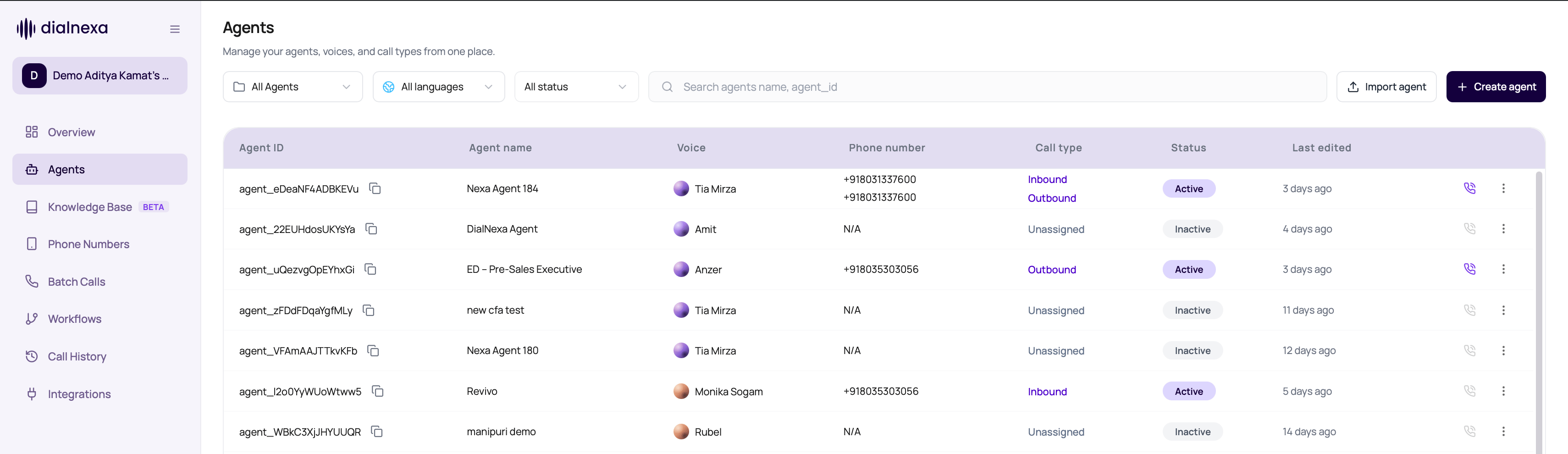
Give each agent one clear job. Separate booking, support intake, and payment reminders unless callers genuinely need those tasks in one conversation.
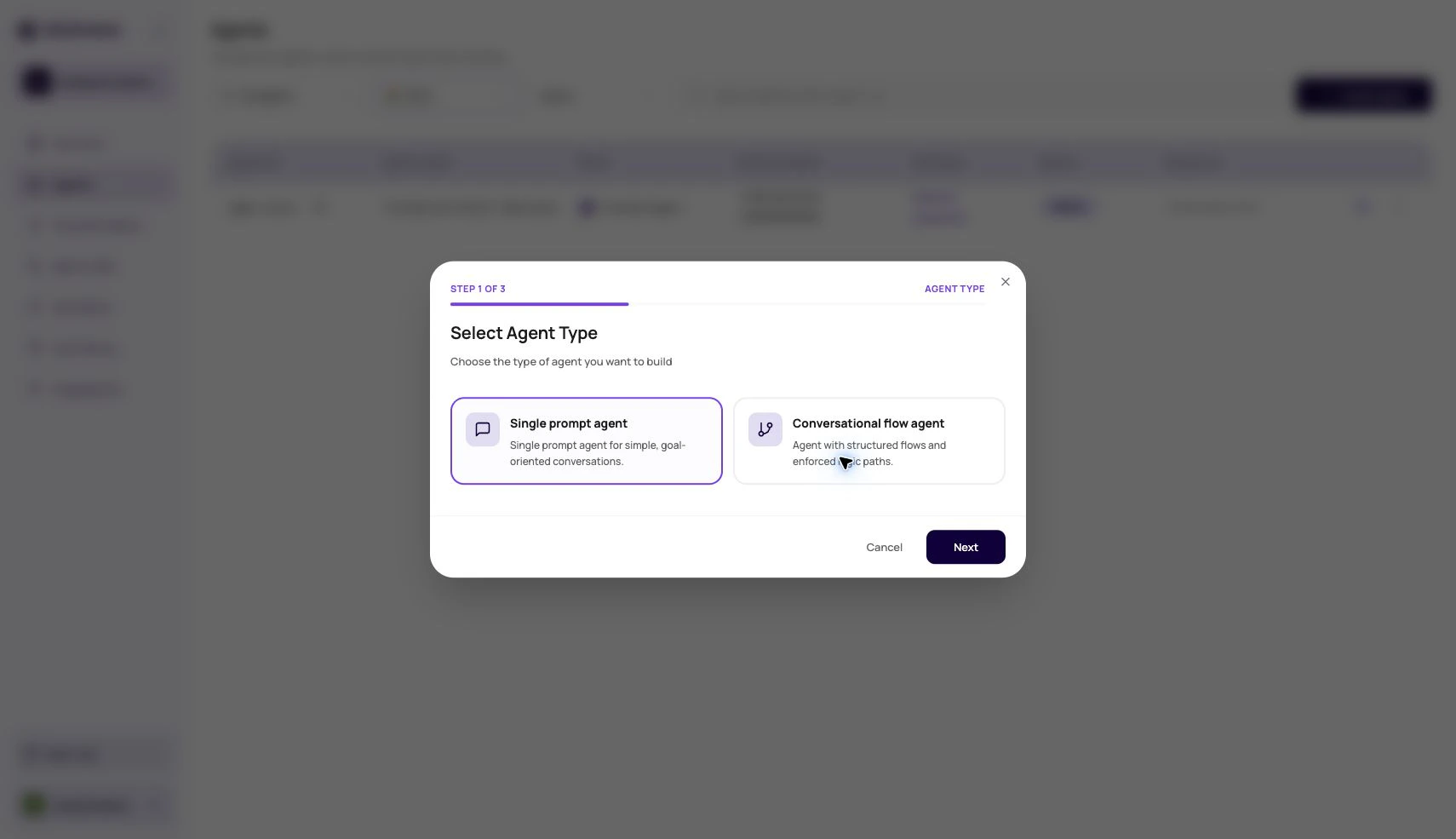
Start By Choosing The Agent Type
The most important early decision is the agent type. Choose Single Prompt for one focused objective, Conversational Flow for explicit node-based paths, and Speech to Speech for realtime voice calls where low turn latency matters.Types Of Agents
Compare Single Prompt, Conversational Flow, and Speech to Speech before building.
Single Prompt Agents
Use one prompt for one clear call objective.
Speech To Speech Agents
Use OpenAI realtime or Gemini model paths where enabled.
What The Agents List Owns
Agent Builder
Agent Builder is the guided create path for a draft Single Prompt Agent. It asks for business context, target customer, call objective, success criteria, information to collect, objections, tone, and extra context. DialNexa then drafts the prompt, welcome message, post-call fields, dynamic variables, and technical profile for review. Use it when you want a strong first draft from structured answers. Start manually when you need a Conversational Flow Agent, exact compliance language, or a known production prompt.Row Actions
Test call
Starts a phone test using the latest published version. If no published version exists, publish before testing from the list.
Duplicate
Creates a copy so users can experiment without changing the original agent.
Export
Exports an agent configuration for reuse or backup.
Move
Moves the agent into a folder for use-case, customer, team, or environment organization.
From Draft To Live Traffic
1
Create or import the agent
Choose a blank agent, a template, or an imported configuration.
2
Choose the conversation stack
Set voice, language, LLM model, transcriber, and voice model.
3
Write behavior
Add prompt, welcome behavior, variables, functions, and knowledge references where needed.
4
Connect useful actions
Add custom functions, dashboard integrations, workflow actions, or webhooks only when the call outcome needs them.
5
Set operational controls
Configure speech settings, call settings, post-call analysis, fallback behavior, and webhooks.
6
Publish a version
Published versions are what live routes should use.
7
Assign a route
Attach the version to a phone number, batch call, workflow call node, web call, or test call.
Why A Test Call May Not Start
No published version
No published version
The list action looks for a published version first. Publish the draft before using row-level test call.
Invalid recipient number
Invalid recipient number
The modal validates country code and expected digit length. Remove formatting and check the selected country.
Missing dynamic variables
Missing dynamic variables
If the agent prompt or flow expects variables, provide test values so the call does not sound incomplete.
Transfer destination validation failed
Transfer destination validation failed
Conversational flow transfer destinations can require valid dynamic values before the test call starts.
Workspace not ready
Workspace not ready
KYC, wallet, or outbound readiness can block some outbound behavior. Follow the readiness prompt in the dashboard.
What Not To Change From The List
The Agents list is for navigation and operations. Change detailed behavior inside the agent builder.Related Reading
Types Of Agents
Choose the right agent structure before configuring the stack.
Agent Builder
Create a draft single prompt agent from a guided brief.
Languages Voices Models And Transcribers
Choose the conversation stack.
Single Prompt Agents
Use one prompt for one clear objective.
Conversational Flow Agents
Use explicit branching for scripted calls.
Speech To Speech Agents
Compare realtime model paths for latency-sensitive calls.
Testing Agents
Place safe test calls.
Dashboard Integrations
Connect agent outcomes to WhatsApp, email, workflows, and external systems.