

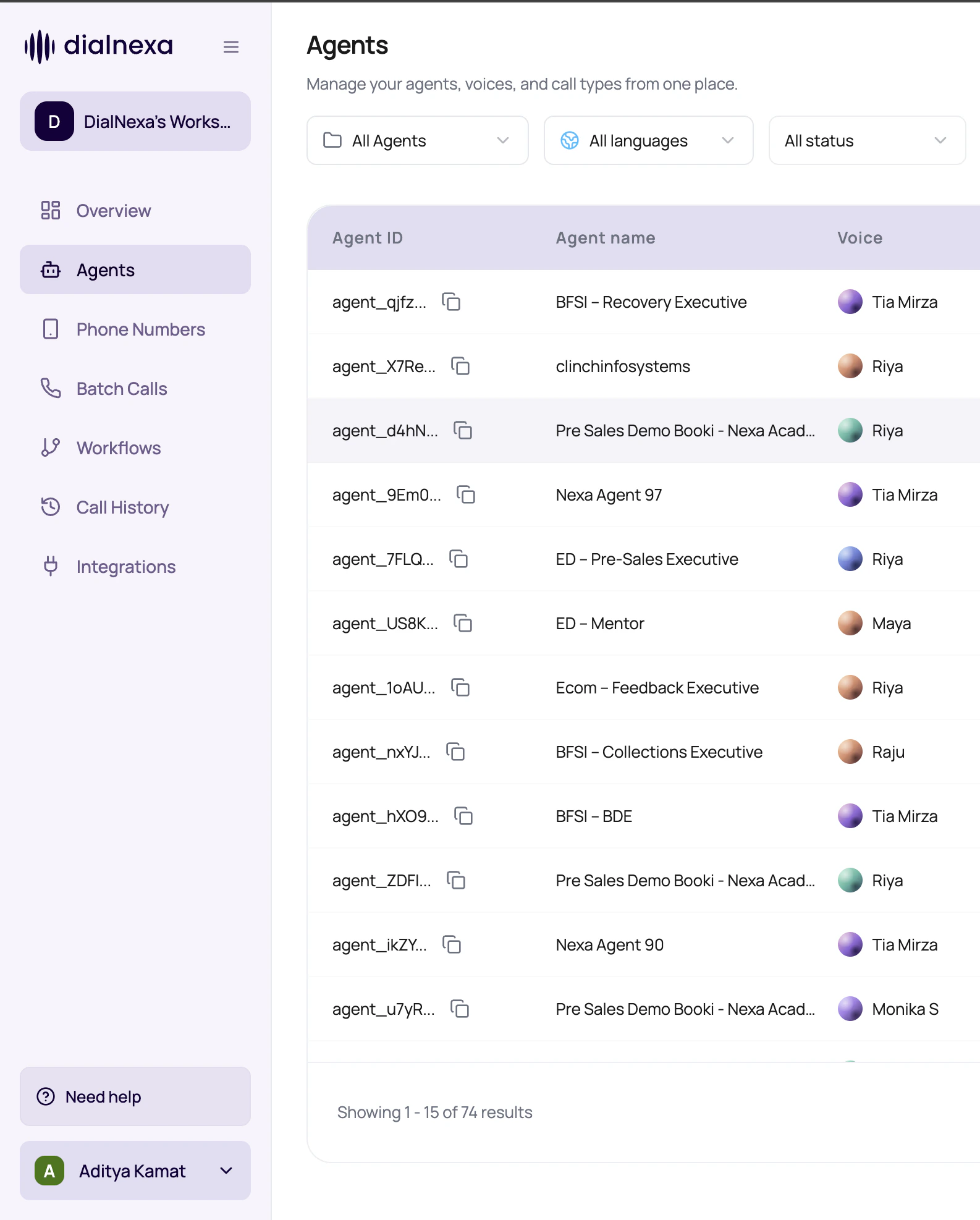
The sidebar is not just decoration. It is the fastest way to understand what part of the product owns the thing you are about to change.
DialNexa Dashboard Navigation Items
The sidebar tabs are Agents, Phone Numbers, Batch Calls, Workflows, Integrations, Call History, Keys, and Webhooks. This page covers how the sidebar itself behaves - for what each tab owns and which docs section covers it, see the Platform Map.Navigation Areas Besides The Tab List
Several controls live around the main tab list.Workspace switcher
Changes organization context and the data loaded by dashboard pages.
Wallet area
Shows balance and recharge action where enabled.
Profile menu
Opens account actions and workspace-related settings available to the user.
Route highlight
Shows the current product area based on the active dashboard route.
Navigate With Less Guesswork
1
Pick the product owner
Use the tab whose name matches the object: agent, number, batch, workflow, integration, key, webhook, or log.
2
Check workspace first
Switching workspaces changes visible data.
3
Watch disabled states
A disabled item usually points to readiness, permissions, or missing configuration.
4
Use Call History as the final proof
After configuration changes, review actual calls in Call History.
Navigation Questions
Why did Keys redirect?
Why did Keys redirect?
Some specialized workspace layouts can route key management through workspace settings.
Why is a page empty?
Why is a page empty?
Check workspace, filters, date range, and whether the object has been created yet.
Related Reading
Platform Map
Use the full dashboard map.
Workspaces
Understand organization context.
KYC And Outbound Readiness
Interpret locked outbound features.