

Before You Begin
Finish the candidate prompt, provider stack, variables, functions, and settings. Run a draft or controlled test and record which live routes will need the new version.What DialNexa Agent Versions Contain
Publishing captures every layer of the agent at that moment in time.Draft vs. Published State
- Draft
- Published Version
- Historical Version
The working state of the agent. All configuration controls are enabled. Changes in draft are not served to callers. You can save and iterate on a draft as many times as needed without affecting live traffic.A draft becomes a published version when you click Publish. After publishing, the draft continues to exist as an editable state — you can immediately make more changes and publish again as a new version.
Why Versions Are Immutable
Immutability provides a reliable audit trail. When a call behaves unexpectedly, you can open the version that handled it and see exactly what prompt, voice, LLM settings, and functions were in place at that moment. If versions were mutable, retroactive edits could obscure what actually ran. This also means you can safely experiment in draft state without risk: no draft edit goes live until you explicitly publish.How to Publish a Version
1
Complete your changes in draft
Edit the prompt, stack settings, functions, speech settings, call settings, and post-call analysis fields as needed. Save as you go.
2
Run a test call
Before publishing, test the draft configuration. From the agent builder, use the test call action and supply any required dynamic variable values. Confirm the agent behavior is correct.
3
Click Publish
Click the Publish button in the agent builder top bar.
4
Enter a version title
Enter a descriptive version title. Use something that communicates what changed, for example:
v4 - added objection handling for price concerns or v2 - switched to Deepgram Flux for faster turns. Avoid vague names like “final” or “updated”.5
Confirm
Click Publish in the confirmation dialog. The version is now immutable and appears in version history.
Publishing does not automatically route traffic to the new version. You must update phone number assignments, batch calls, or workflows to use the new published version. Existing routes continue using their currently assigned version until you update them.
Assigning a Version to a Route
After publishing, assign the version to the route where you want callers to reach it.The Phone Numbers table shows assigned agent context for each number. It does not rename agents or edit published versions from the table row itself.
Rolling Back to an Older Version
If a new published version causes call quality issues, roll back by reassigning the route to an earlier published version.1
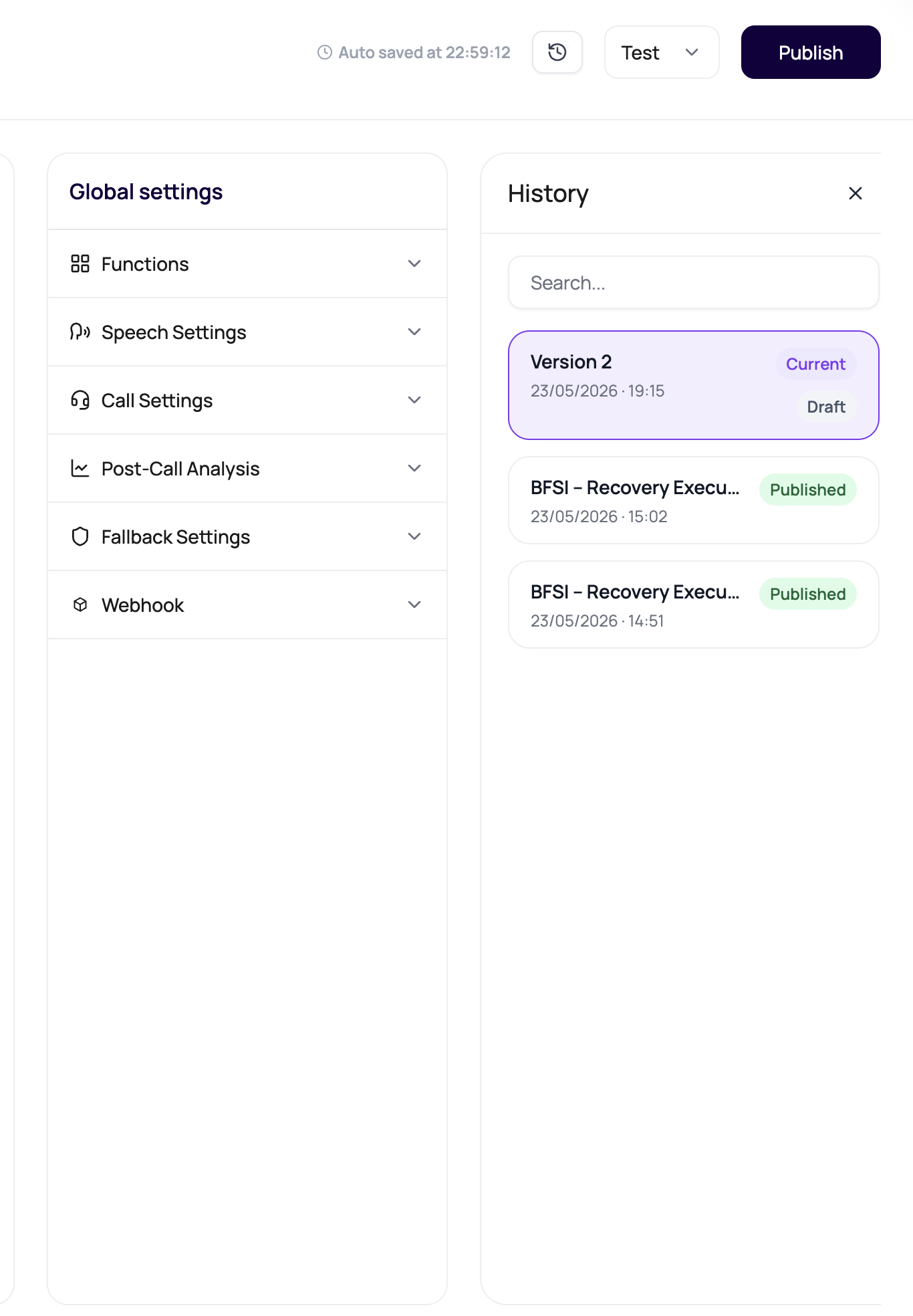
Open version history
In the agent builder, open the version selector or click Version History in the agent settings. All published versions are listed with their titles and timestamps.
2
Identify the last known good version
Look at the version titles and timestamps. Identify the version that was live before the problematic publish.
3
Reassign the route
Open the route configuration surface for the phone number, batch call, or workflow that is receiving traffic. Where that surface exposes version assignment, select the last known good published version and save.
4
Verify
Place a test call or monitor the next inbound call to confirm behavior has reverted. Open Call History and check that the transcript matches expected behavior.
Version Fields You Will See
Version Mistakes to Avoid
Publishing without testing
Publishing without testing
A published version goes live as soon as a route is updated to use it. Test in draft first using the test call feature, including edge cases and off-script caller behavior.
Using vague version titles
Using vague version titles
Version titles are your primary debugging tool when something goes wrong in a live call. “Final v2” tells you nothing. “v5 - switched to GPT-4o, added transfer function” tells you exactly what changed.
Forgetting to update routes after publishing
Forgetting to update routes after publishing
Publishing a new version and assuming routes switch automatically is the most common mistake. Routes retain their current version assignment until you manually change them.
Editing a published version
Editing a published version
You cannot edit a published version. If controls are grayed out, you are viewing a published version. Switch to the draft to make changes, then publish again.
Leaving old numbers pointing at an obsolete version
Leaving old numbers pointing at an obsolete version
After a major publish, check all routes assigned to the agent. Old phone numbers may still point to version 1 while your team expects version 5 to be live everywhere.
A Safe Publish Routine
1
Name the version clearly
Use a title that tells future users what changed and why.
2
Run realistic tests in draft
Test the welcome message, variable rendering, each function call, any transfer behavior, post-call analysis fields, and the end-call path.
3
Publish with confirmation
Click Publish only when you are confident the draft is correct.
4
Update routes intentionally
Update phone number route configuration, batch calls, or workflows to the new version. Do not update all routes simultaneously on a large-scale deployment. Update one route, monitor a sample of calls, then expand.
5
Watch the first calls
Open Call History immediately after routing traffic. Check transcript quality, function call success, post-call field extraction, and call completion status.
Verify The Published Version
Confirm the version title and number, then test the published version. Check each intended phone number, batch campaign, workflow node, or web-call route before assuming live traffic moved automatically.Recap
A published version is an immutable configuration used by call routes. Test the candidate, publish with a meaningful title, assign the intended routes, and verify a real call before retiring the previous version.Related Reading
Agent History and Version Review
View and compare historical versions.
Phone Numbers
Assign published versions to inbound and outbound routes.
Dynamic Variables
Understand how variable defaults are captured in published versions.
Testing Agents
Test before publishing to catch issues early.
Publishing And Versioning Video
Watch how to publish an agent and review versions.