

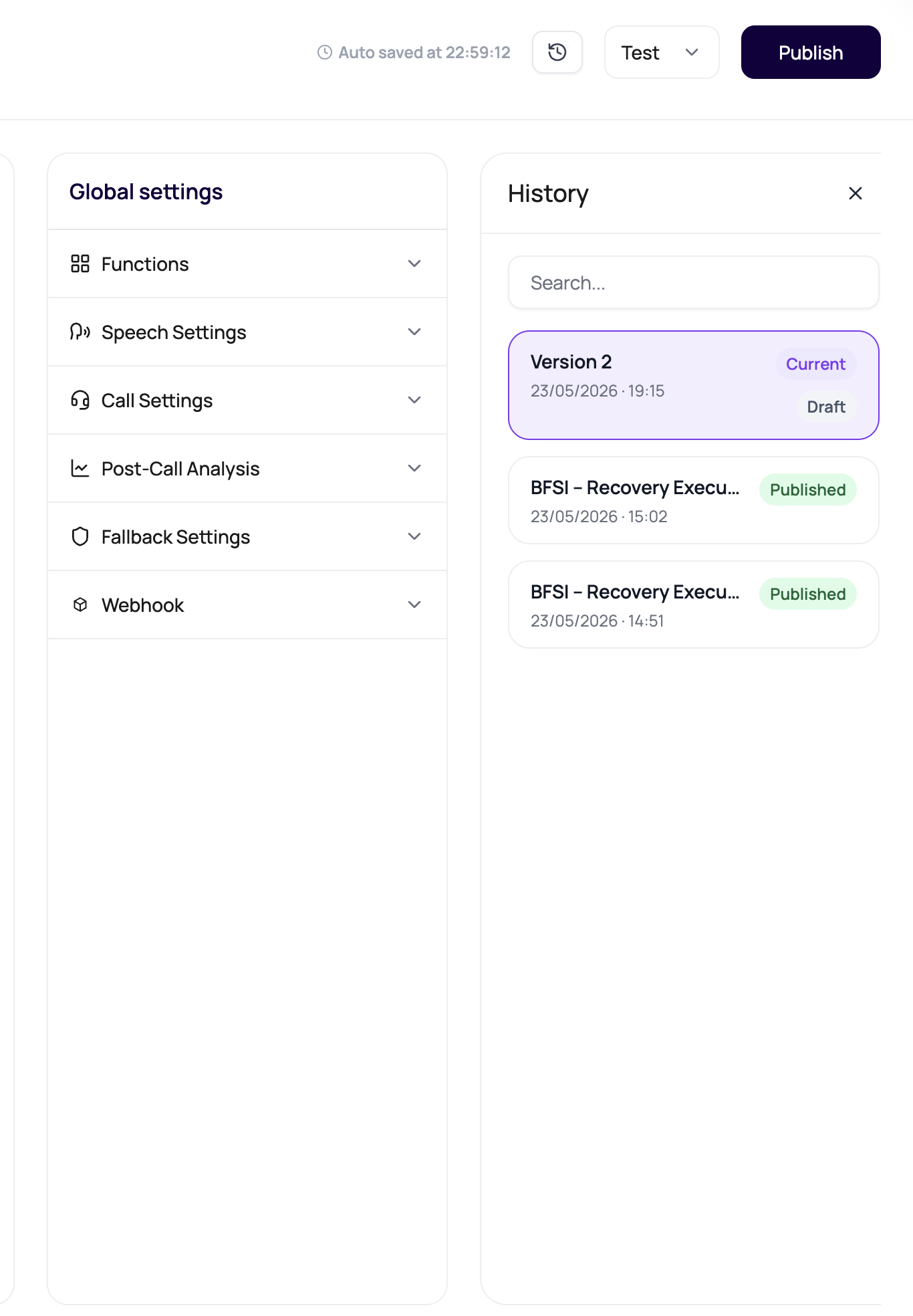
Find DialNexa Agent History And Version Details
Version history is accessible from the agent builder:- Open the agent from the Agents list.
- In the builder, look for the Version History button or the version selector dropdown in the top bar.
- Click it to open the version list. All published versions appear in reverse chronological order (most recent first).
- Version number (auto-incremented)
- Version title (the label you entered at publish time)
- Published timestamp
- Published by (user account, where shown)
- Whether this version is currently assigned to a live route
What Each Version Shows
Clicking a version in the history opens a read-only view of that version’s full configuration. You can inspect:
Published versions are immutable. You can view everything in a historical version but cannot edit it.
What Version History Helps Answer
Use version history when you have a call quality question or a behavioral change you cannot explain.Comparing Versions
DialNexa does not currently offer an automated diff view. To compare two versions:1
Open version history
Open the agent and navigate to version history.
2
Note the current version configuration
Click the most recent version and copy the prompt and key settings into a text editor.
3
Open the earlier version
Click the earlier version you want to compare against. Review its prompt and settings.
4
Identify the differences
Look for changes in: prompt text, voice or LLM model, temperature, transcriber, functions, variable defaults, and call settings.
5
Form a hypothesis
Determine whether the changes between versions can explain the behavior difference you observed in calls.
Finding the Version That Handled a Specific Call
When a caller complains or a call transcript shows unexpected behavior, you need to know exactly which version ran.1
Open Call History
In the left sidebar, click Call History (or Calls > History depending on your navigation).
2
Find the call
Search by phone number, date range, or call ID. Click the call row to open the call detail page.
3
Note the agent version
The call detail page shows which agent and which version handled the call. Note the version number.
4
Open that version in history
Go to the agent, open version history, and click the matching version number. This is the exact configuration that ran during that call.
5
Do not debug the current draft
A common mistake is opening the agent builder and reading the current draft, which may have changed since the call. Always look at the version from the call detail, not the current state.
Using History During Debugging
1
Open the failing call
Find the call in Call History and note the agent version number.
2
Open the matching version in history
Do not debug the current draft. Open the exact version the call used.
3
Identify the specific failure
Read the transcript alongside the prompt. Find where the agent deviated from expected behavior. Look for: wrong branching, a variable that rendered as a placeholder, a function that failed, or a missing end-call instruction.
4
Compare against the previous stable version
Open the version before the one that caused the issue. Look for prompt, function, variable, and setting differences. The delta between versions is usually the root cause.
5
Fix in draft and publish a focused change
Make the smallest change that fixes the issue. Do not bundle multiple fixes into one version if you can avoid it. Smaller changes are easier to verify and easier to roll back.
6
Watch the next call sample
After publishing the fix and updating routes, monitor the next 5 to 10 calls in Call History to confirm the issue is resolved.
Review Before Rolling Forward
Before publishing a new version, a thorough review should cover more than just the prompt.Conversation stack
Confirm language, model, voice, transcriber, temperature, and speed are set as intended.
Runtime settings
Check functions, speech settings, call settings, variable defaults, and webhooks.
Post-call analysis fields
Verify field names, types, and extraction descriptions match what your team expects.
Routing
Confirm inbound and outbound phone number assignments point to the correct version after publishing.
Version History Limitations
Draft state is not recorded in history
Draft state is not recorded in history
Version history only shows published versions. In-progress draft edits that were never published do not appear in history. If you want to preserve a draft state before making major changes, publish it first with a descriptive title like “checkpoint before refactor”.
No automated diff view
No automated diff view
There is no built-in side-by-side diff. Compare versions manually or copy prompt text to an external diff tool.
Historical versions cannot be edited
Historical versions cannot be edited
You can view and assign historical versions to routes, but you cannot edit them. To modify a historical version, duplicate it as a draft (where supported) or manually recreate the configuration in the current draft.
Related Reading
Agent Versions and Publishing
Understand publish state, version immutability, and rollback.
Call Detail Page
Find the agent version that handled a specific call.
Testing Agents
Test candidate versions before routing live traffic.
Dynamic Variables
Understand how variable defaults are captured in versions.