

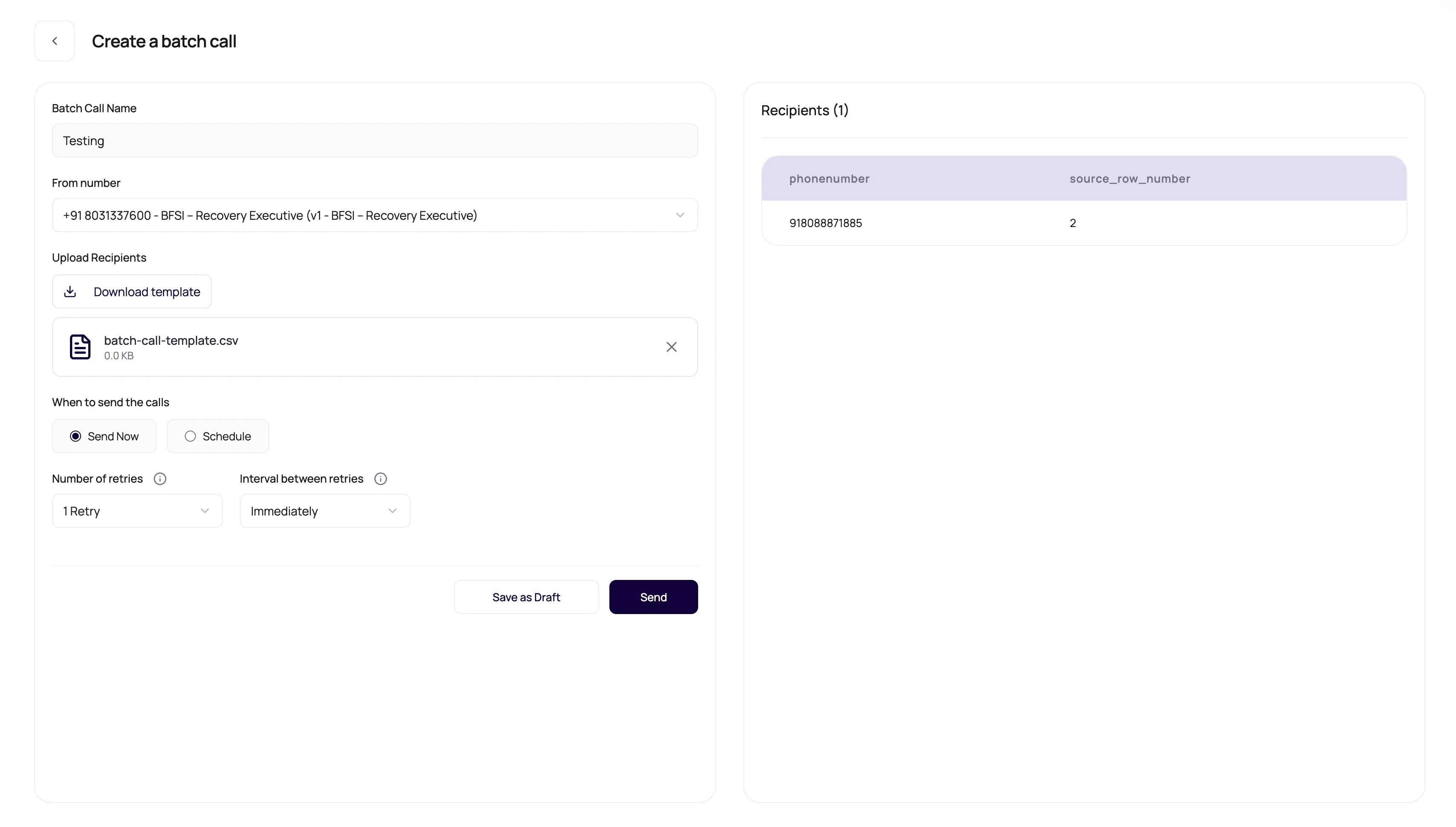
Before You Begin
List the variables used by the published agent and collect one valid recipient row for each important scenario. Use consented test numbers before preparing a production file.Expected CSV Shape
Keep recipient files boring and predictable.
The upload flow reads headers from CSV files and supported spreadsheet files. For Excel uploads, DialNexa converts the mapped sheet data to CSV before sending it for campaign parsing.
Upload Wizard Steps
The batch upload wizard keeps each review step explicit before the recipient table is accepted.
If a new upload is cancelled during review, DialNexa restores the previous recipient state instead of leaving a partial file attached to the campaign.
Template Behavior
The download template changes with the selected number and agent version.Agent defaults first
The template uses default dynamic variable keys from the selected agent version when available.
Fallback placeholders
If no agent variables are available, the template includes generic placeholder variable columns.
Recipient preview
Parsed recipients are displayed in a table before launch.
File upload checks
The page validates CSV type and rejects large or invalid uploads.
Match Uploaded Columns
After upload, the Match CSV Columns modal lets you align the file with the selected agent version before the table is created.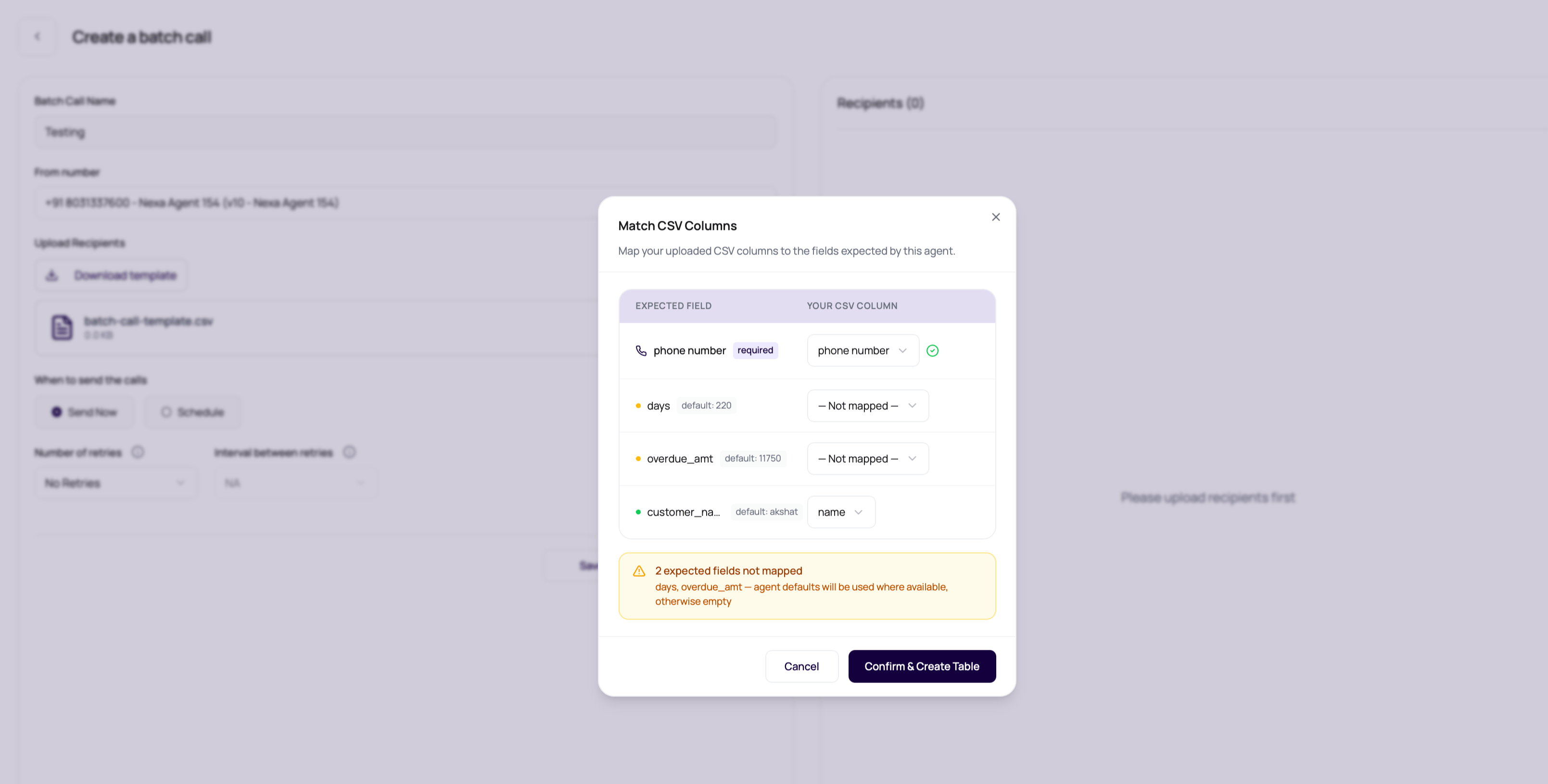
When you confirm the mapping, DialNexa normalizes the selected phone column to
phonenumber and renames mapped variable columns to the expected agent variable keys. This lets operators upload files with readable business headers without editing the source spreadsheet first.
Review AI Name Suggestions
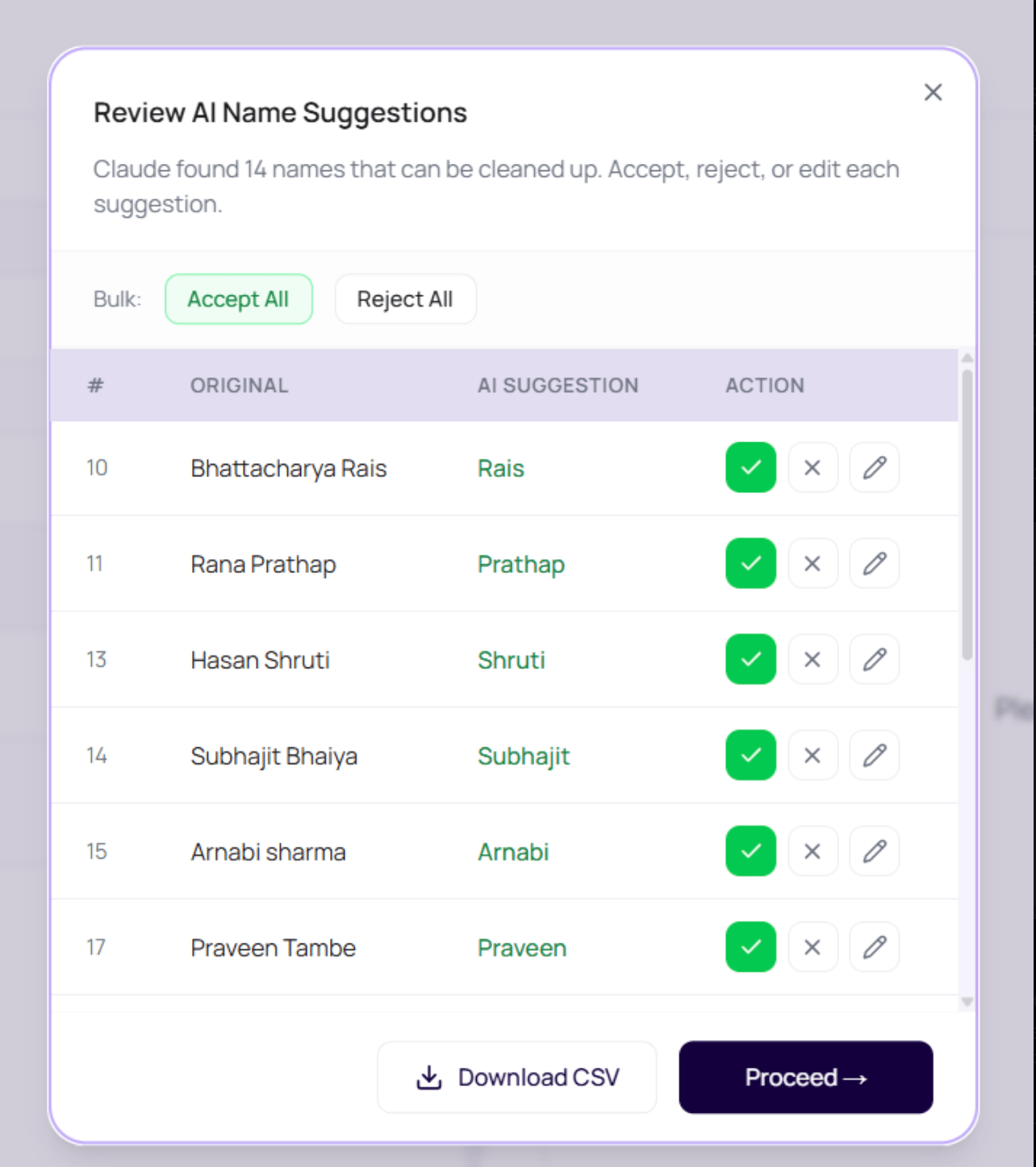
After column mapping, the wizard opens an optional AI Name Cleanup step. The dashboard can auto-select a likely name column, but the operator can choose a different column or skip the step. If a column is selected and the file has fewer than1,000 leads, Claude checks the names for cleanup suggestions before the recipient table is built. If name cleanup fails, DialNexa shows an empty review state and continues with the original names.
The Review AI Name Suggestions modal shows the original value, the suggested value, and row-level controls.
For batches over
1,000 contacts, the dashboard skips AI name cleanup and shows a warning. Review names in the source file before upload when large campaigns need standardized salutations.
Review Invalid Phone Numbers
After mapping and name review, the dashboard validates the selected phone column against the outbound route. Invalid rows open the Review Invalid Phone Numbers step.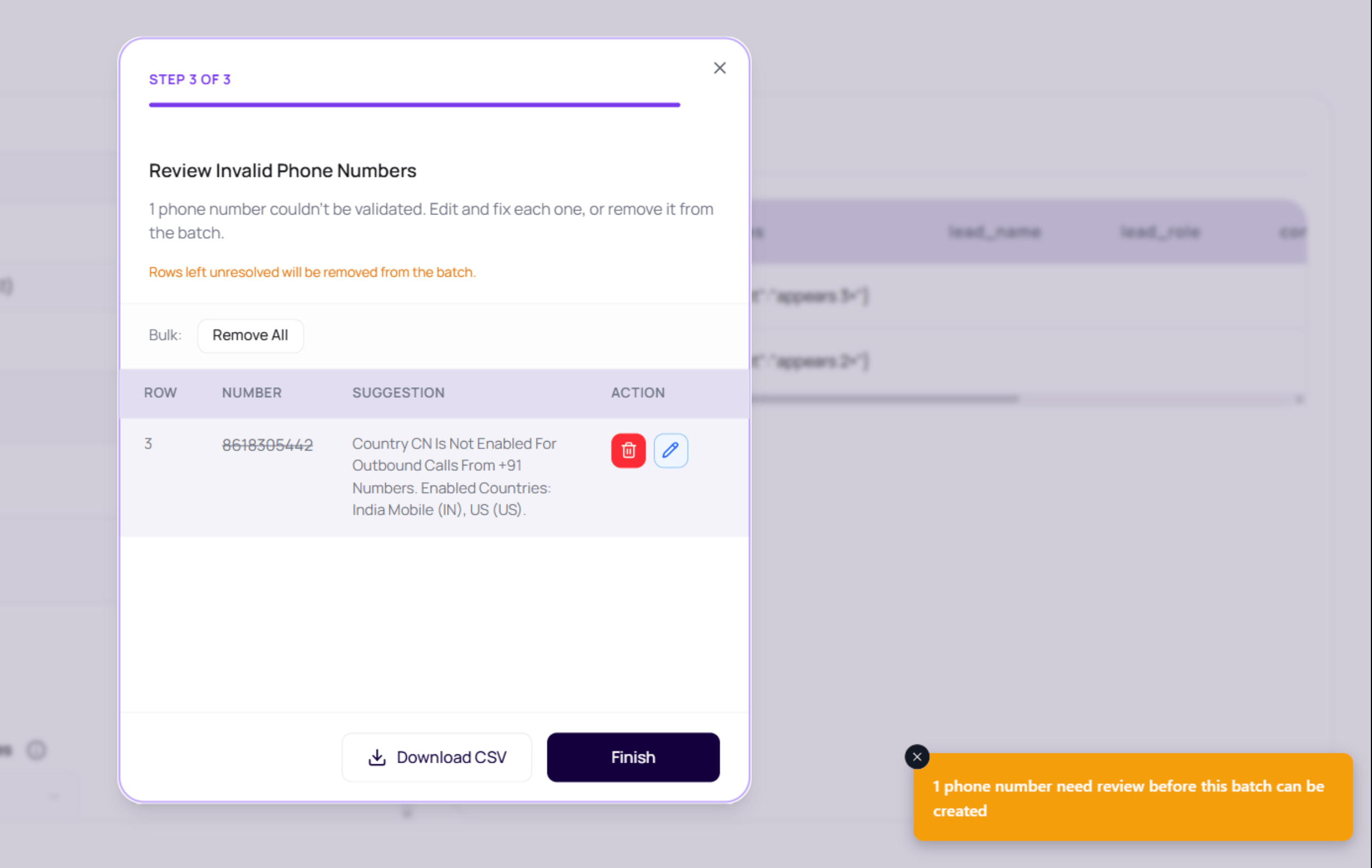
Each invalid row keeps its original source row number, mapped phone value, validation message, and current decision. This matters when a spreadsheet owner needs to repair the source file later, because the operator can point to the exact row instead of describing a general upload failure.
DialNexa can normalize Indian numbers that explicitly include the
91, +91, or 0091 country code. It does not guess that a bare 10 digit number is Indian, because that could rewrite a real number from another country. Use full international format when possible.
Duplicate Phone Number Handling
The create page skips duplicate phone numbers by default before the recipient table is built. When the same non-empty phone number appears more than once, DialNexa keeps the first mapped row and removes later rows with that number. After upload, the page shows how many duplicate phone numbers were skipped.
Turn duplicate skipping off only when repeated calls to the same phone number are intentional for that campaign.
Prepare A Clean File
1
Enter a short campaign title
Keep the title at
35 characters or fewer. Longer titles are rejected before launch.2
Select the outbound number first
This lets the page know which agent version variables to use.
3
Download the template
Start with headers that match the selected agent.
4
Fill realistic values
Use production-ready names, dates, amounts, and transfer destinations.
5
Upload and inspect rows
Check the preview table before saving or starting.
6
Fix errors before launch
Do not launch a file whose preview already looks wrong.
File Requirements
When Rows Fail Validation
The upload parser checks recipient phone numbers against the same destination validation rules used by single outbound calls. Duplicate removal happens before this validation when Skip duplicate phone numbers is enabled. Failed rows appear in the phone-number review step, grouped with the validation reason. See Common Upload Errors for each error type, what it means, and how to fix the file.Verify The Recipient File
After upload, confirm the phone-number column, variable mappings, row count, duplicate handling, and validation results. Run a small batch and verify that spoken values match the intended CSV row.Related Reading
Dynamic Variables
Map variables to CSV columns.
Common Upload Errors
Fix file issues.
Recipient Results
Review row outcomes.