

DialNexa Batch Call Upload Error Checklist
Use this table before retrying an upload.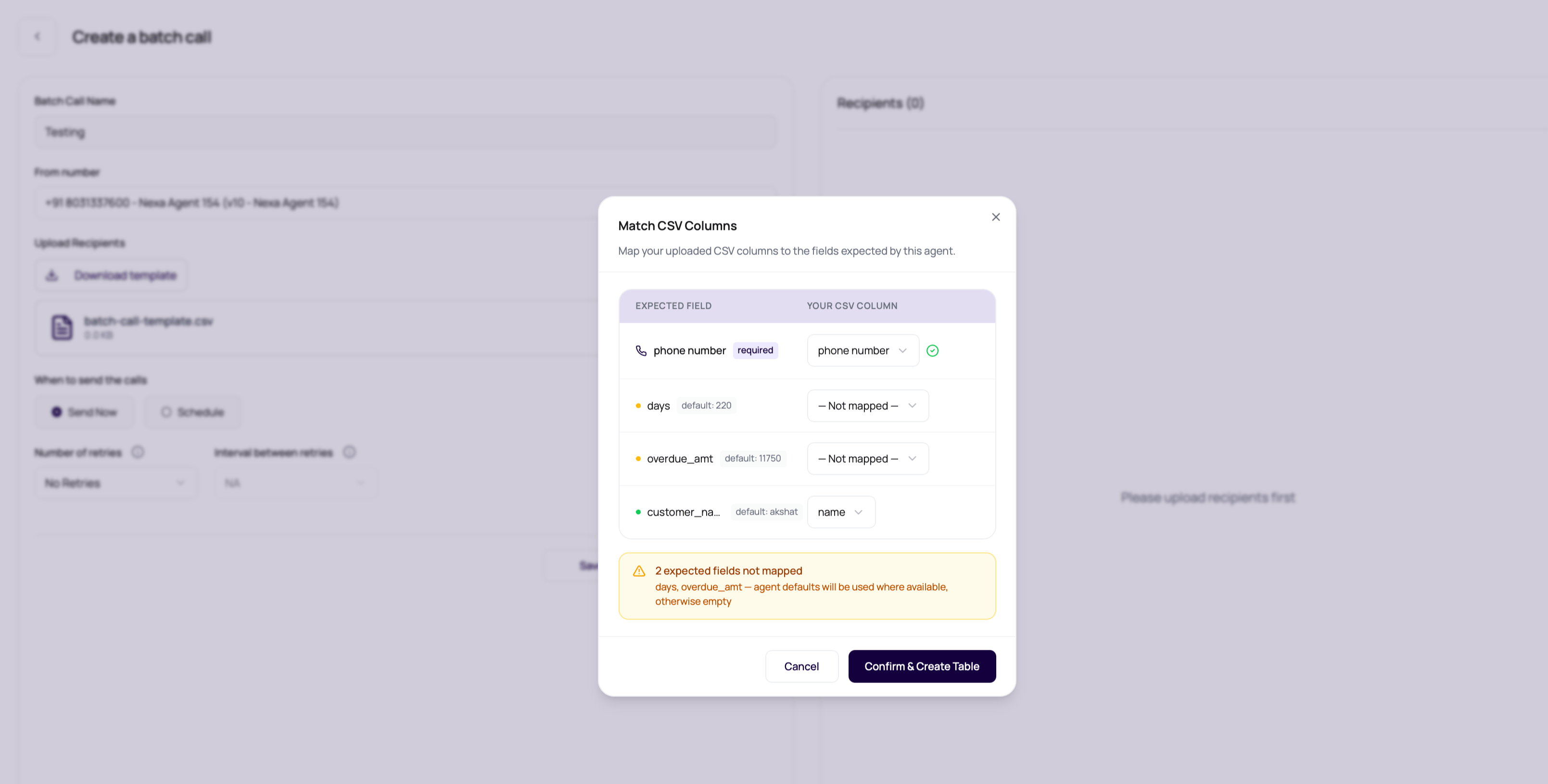
Destination Validation Errors
Recipient numbers are checked against the same route rules used by single outbound calls.
The upload wizard now shows invalid phone numbers before the recipient table is accepted. Each row shows the source row number, phone number, validation reason, and current decision. Correct the number when the intended recipient is clear. Remove the row when the number is incomplete, belongs to an unsupported destination, or needs offline confirmation.
Rows left unresolved are removed by default before the reviewed file is accepted. Use Download CSV from the review step when the upload owner needs a cleanup file with the latest edit and remove decisions.
For direct API uploads, the create request still returns
400 Bad Request when validation fails. The response groups failed rows by reason so API clients can repair the source file before retrying.
Clean A Failed Upload
1
Download the template again
Use the template for the currently selected number and agent version.
2
Copy data into the template
Keep headers unchanged while moving rows over, or map your existing headers in the upload modal.
3
Remove formatting clutter
Avoid merged cells, hidden formulas, and non-CSV spreadsheet features.
4
Upload a small sample first
Test the first few rows before uploading the full list.
5
Check the preview
Confirm phone numbers and variables appear in the expected columns.
File Problems That Look Like Product Bugs
Headers differ by one character
Headers differ by one character
The agent expects the exact variable key after mapping. Use the modal to map readable headers to agent variable keys.
Phone numbers include country twice
Phone numbers include country twice
Check whether your file already includes country code before entering local digits.
Many rows show the same validation error
Many rows show the same validation error
The dashboard groups destination validation failures by message and row number. Use Download CSV in the phone-number review step when the list needs offline cleanup.
Duplicate numbers disappeared after upload
Duplicate numbers disappeared after upload
The create page skips duplicate phone numbers by default and keeps the first row for each non-empty number. Remove the uploaded file and turn off Skip duplicate phone numbers before uploading again if repeated calls are intentional.
Values contain commas
Values contain commas
CSV values with commas need proper quoting. Use a spreadsheet export instead of hand-editing when possible.
The selected agent changed
The selected agent changed
Template variables depend on the selected published agent version.
Related Reading
Recipient Files
Prepare a clean CSV.
Dynamic Variables
Match headers to placeholders.
Recipient Results
Review uploaded rows and outcomes.