

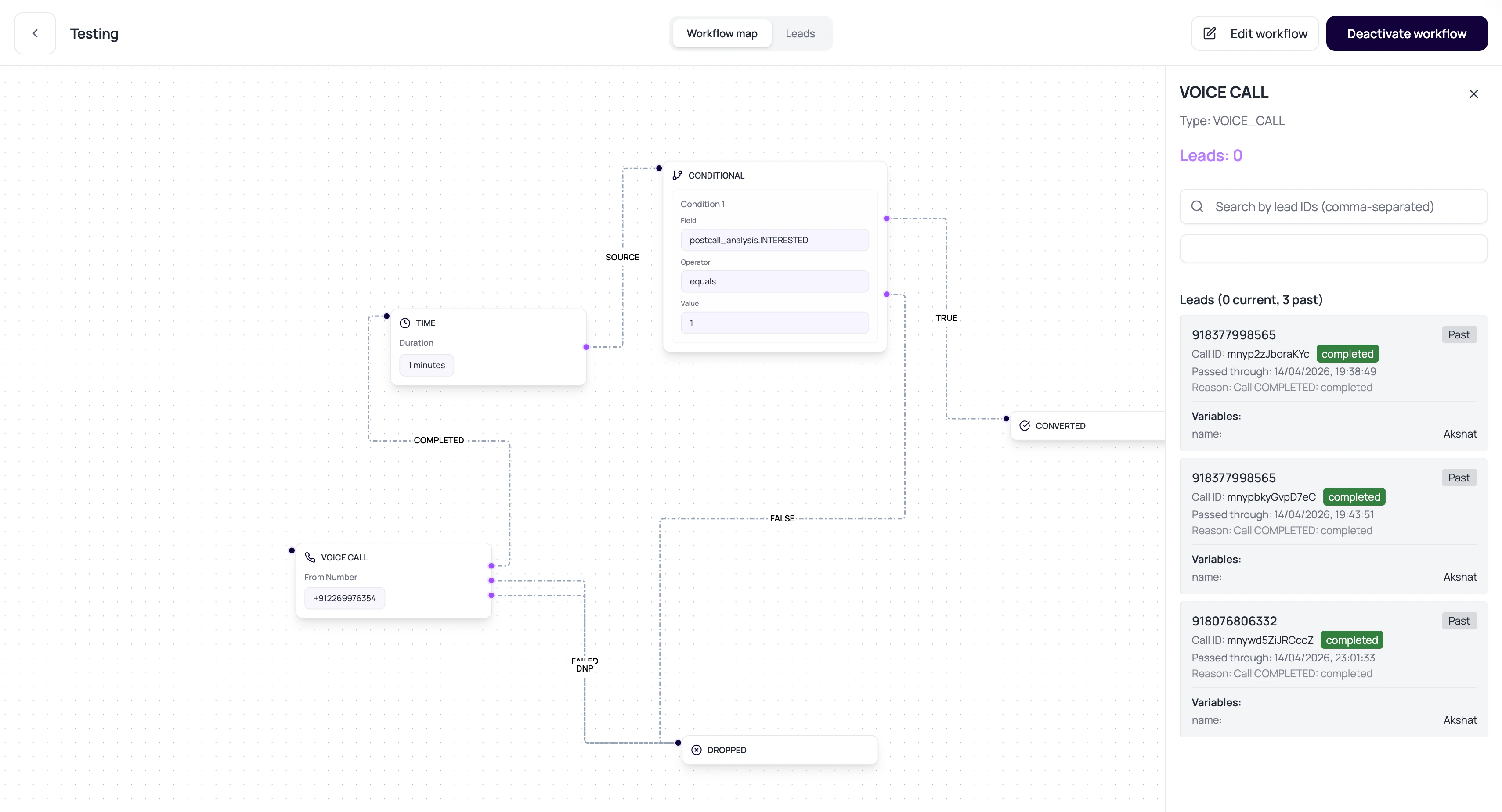
DialNexa Workflow Lead History And Debugging Evidence
The history response is built for debugging one lead.How The History Graph Helps
The history view highlights actual execution.Visited nodes
Shows which nodes the lead entered.
Traversed edges
Shows which edge labels were followed.
Current node
Shows where an active lead is waiting or processing.
Call details
Links voice call transitions to call logs.
Debug A Stuck Lead
1
Open lead history
Start with the lead, not the whole workflow.
2
Find current node
Check whether the lead is at a call, wait, condition, application, converted, or dropped node.
3
Read the last transition
Look at reason and metadata for the latest move.
4
Open linked call log
If the last node was a Voice Call node, inspect the exact call.
5
Fix the node config
Adjust outputs, variables, or integration setup, then retest with a small sample.
Related Reading
Call Detail Page
Inspect linked calls.
Application Nodes
Debug action failures.
Statuses
Understand status labels.