

DialNexa Background Noise And Audio Quality Signals
Use the call detail page to separate audio issues from prompt issues.How Phone Audio Reaches Transcribers
Denoising Mode
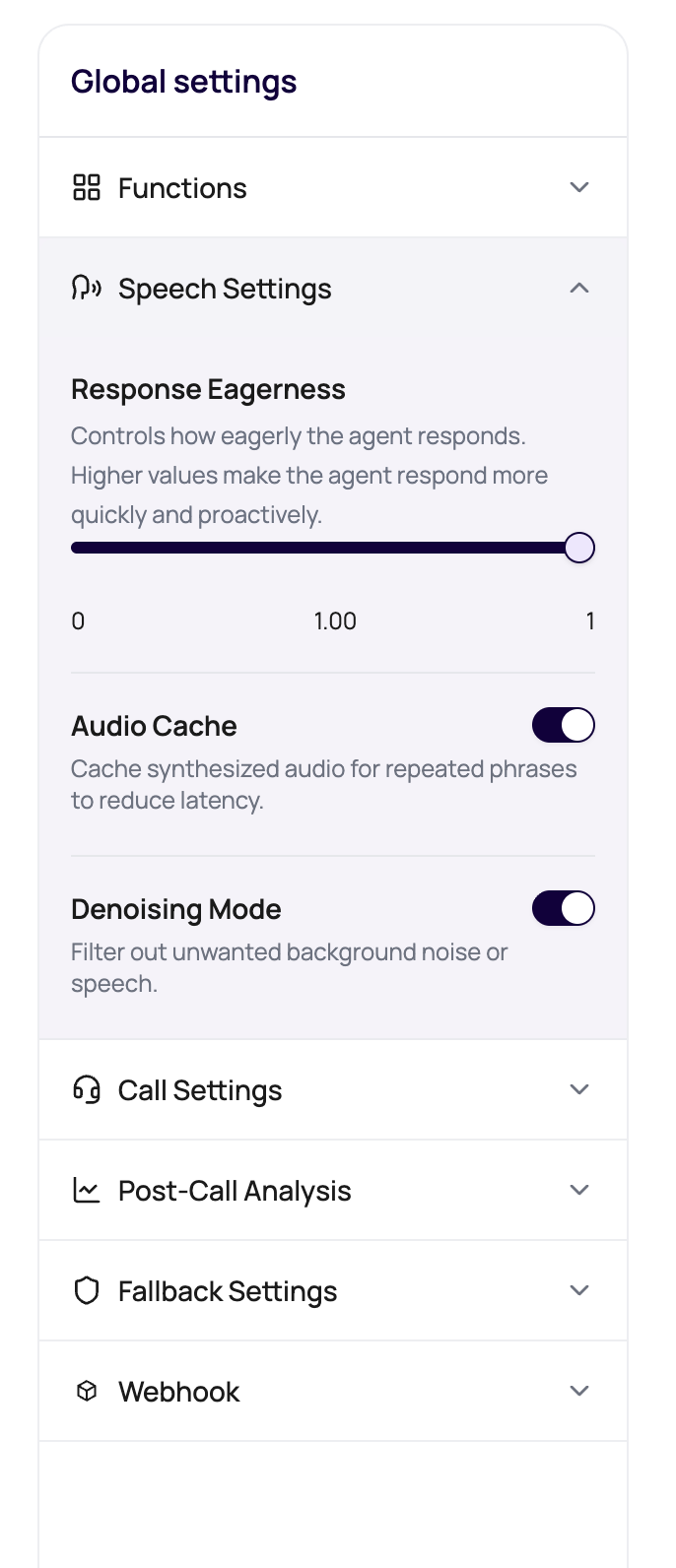
Denoising Mode reduces unwanted background sound before it damages the transcript. When the mode is on, Noise Suppression Strength controls how aggressively DialNexa asks the denoiser to clean the audio. It is useful, but it is not magic dust. A caller on a scooter in traffic still deserves a realistic test.Current outbound call processing keeps server-side denoising off unless DialNexa enables it for the route. Treat Denoising Mode as a setting to validate in Call History, not as a guarantee that every outbound path will apply noise cleanup.
If the denoiser fails during a call path where fallback is available, DialNexa can continue with raw audio instead of ending the call because cleanup failed. Treat that as a resilience behavior, not proof that audio quality was good. Review the recording and transcript before deciding whether the route needs denoising changes.
Investigate A Bad-Audio Call
1
Open the exact call
Use the call detail page for the affected call. Averages hide the moment that broke the conversation.
2
Play the recording
Listen for noise, clipping, echo, silence, overlap, low volume, and transfer bridge issues.
3
Compare transcript text
Check whether the transcript missed the same words that were hard to hear in the recording.
4
Change the narrowest setting
Tune Denoising Mode, Noise Suppression Strength, transcriber, language, or call path one change at a time.
5
Retest on the same audio condition
A quiet retest does not prove a noisy-call fix.
Audio Problems That Masquerade As Agent Bugs
Agent repeats a question
Agent repeats a question
The caller answer may not have been captured clearly. Check whether the transcript contains the answer before changing the prompt.
Agent ignores a correction
Agent ignores a correction
The correction may have overlapped with agent speech, or the transcriber may have finalized the previous turn too early.
Post-call extraction is empty
Post-call extraction is empty
The needed detail may be absent or garbled in the transcript. Fix the audio or transcriber fit before editing extraction fields.
Call transfer sounds broken
Call transfer sounds broken
Check transfer details and bridge audio before blaming the base agent prompt.
Related Reading
Speech Settings
Tune Denoising Mode and Audio Cache.
SIP Trunking
Understand telephony path setup.
Speech To Text
Compare transcriber behavior on phone audio.
Call Detail Page
Review exact call evidence.